Removing MFA options
Keep In Mind
As a minimum for account security, SMS / Email 2FA is now required of all UtahID users. Follow this article for instructions on how to add or update your SMS / Email MFA options.
Sign in
Go to https://id.utah.gov, opens in a new tab and sign in to UtahID.Select Security - On the Top
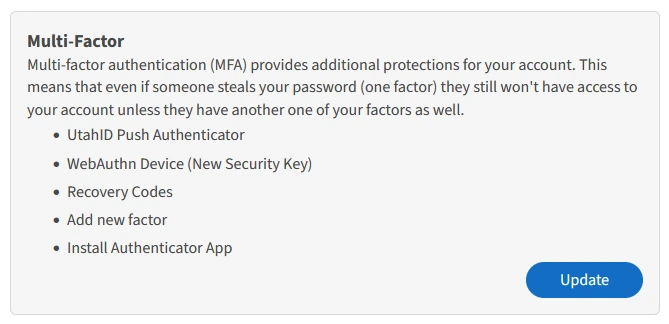
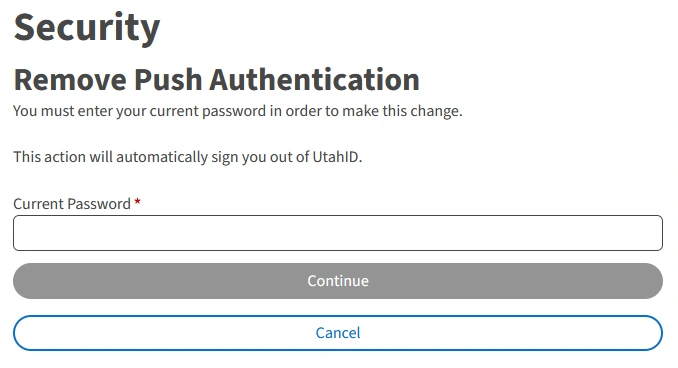
Select the Security link at the top, scroll down to the Multi-Factor section and click Update. Scroll down to find the UtahID Push Authenticator card and click Update to remove UtahID Push Authenticator from your UtahIDEnter your password and click Continue
Click Submit
The option is removed and you are logged out.
You have successfully removed the UtahID Authenticator Two Factor from UtahID.
Removing UtahID Authenticator MFA Option
Sign in
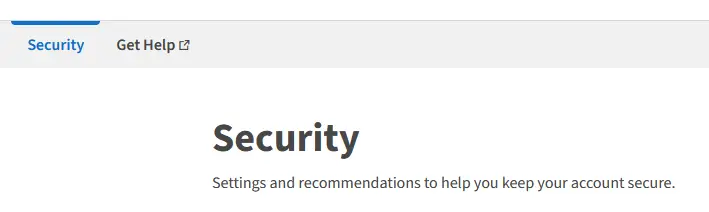
Go to https://id.utah.gov, opens in a new tab and sign in to UtahID.Select Security - On the Top
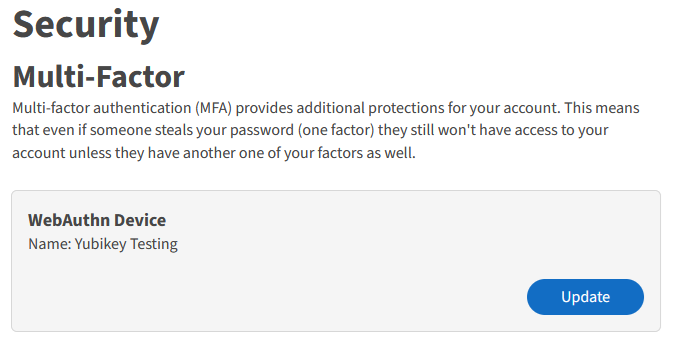
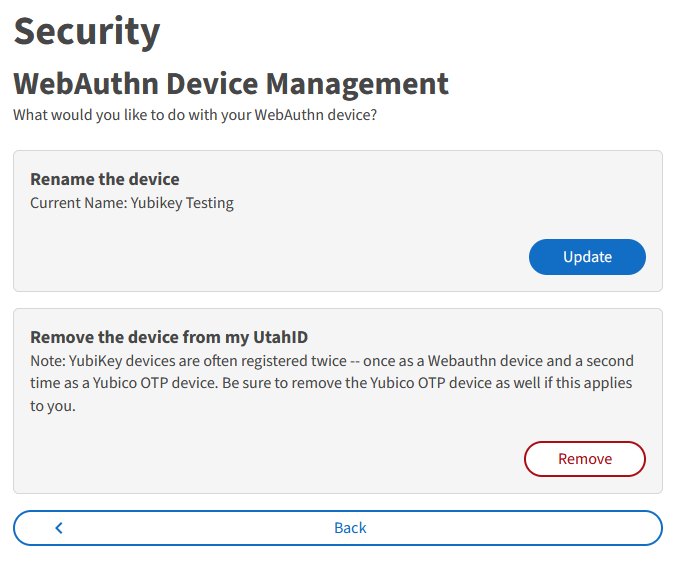
Select the Security link on the top, scroll down to the Multi-Factor section and click Update. On the next screen, the device can be renamed or can be removed.
Click Remove under Remove the device from my UtahID to progress.
Select Remove the Device from my UtahID
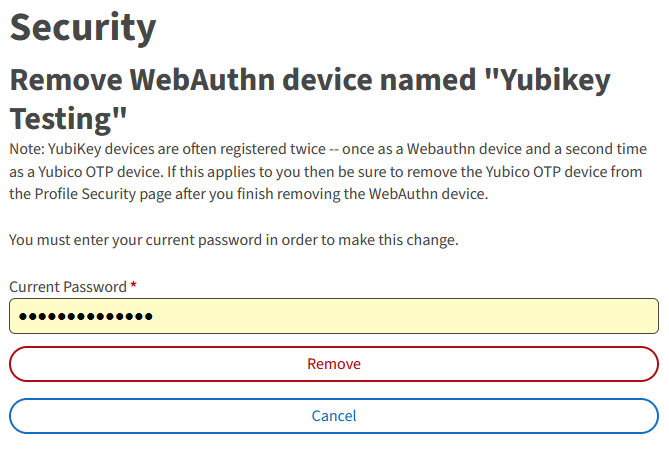
Enter Your Password and Click Remove
The device is removed and you are logged out.
You have successfully removed the WebAuthn device from UtahID.
Removing WebAuthn MFA Option
Note: If removing YubiKey, you may also want to remove YubiKeyOTP. See the next section for removing Yubikey OTP.
Sign in
Go to https://id.utah.gov, opens in a new tab and sign in to UtahID.Select Security - On the Top
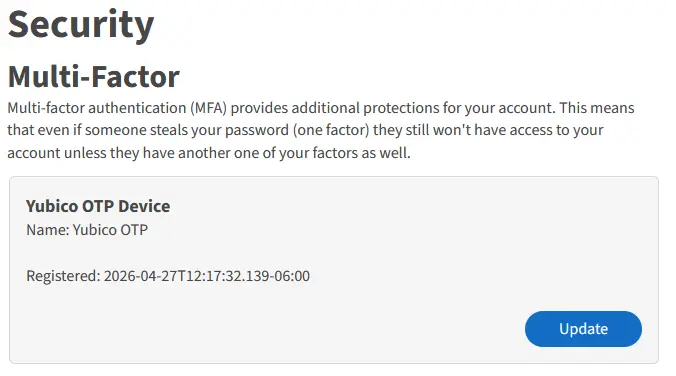
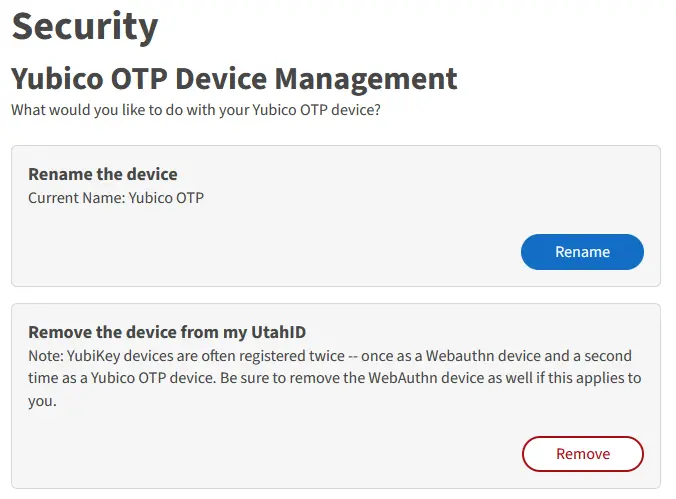
Select the Security link on the top, scroll down to the Multi-Factor section and click Update. After that, click Update under the Yubico OTP Device card.
Select Remove the Device from my UtahID
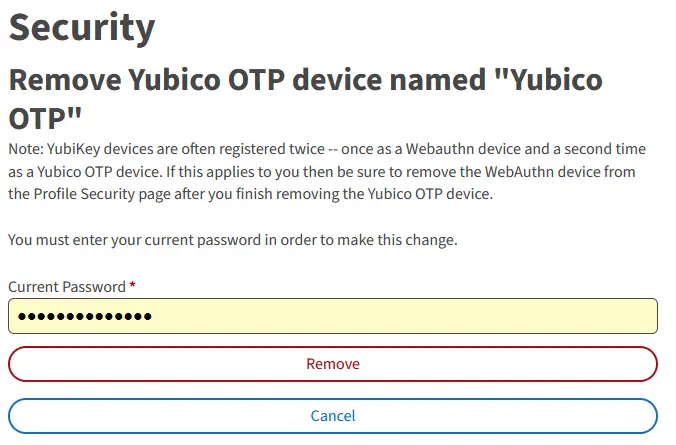
Enter Your Password and Click Remove
The Yubico OTP is removed and you are redirected back to the Security tab.
You have successfully removed the Yubikey OTP from UtahID.