Set Up WebAuthN MFA
Sign in
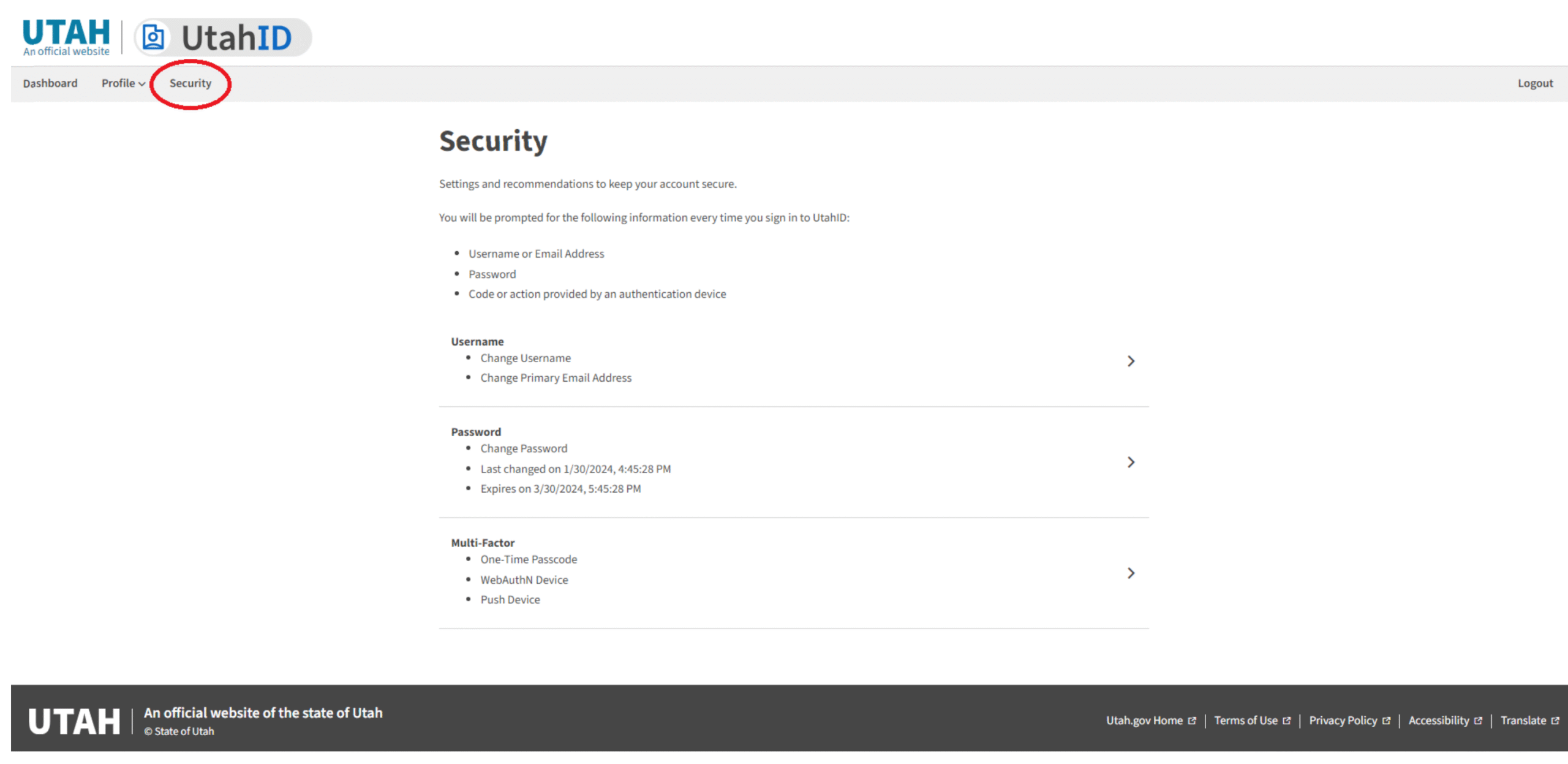
Go to https://mylogin.utah.gov and login to your UtahIDSelect Security - In the Main Menu
Once logged in to UtahID, select the Security menu item on the Main Menu (gray bar).Update Multi-Factor Information
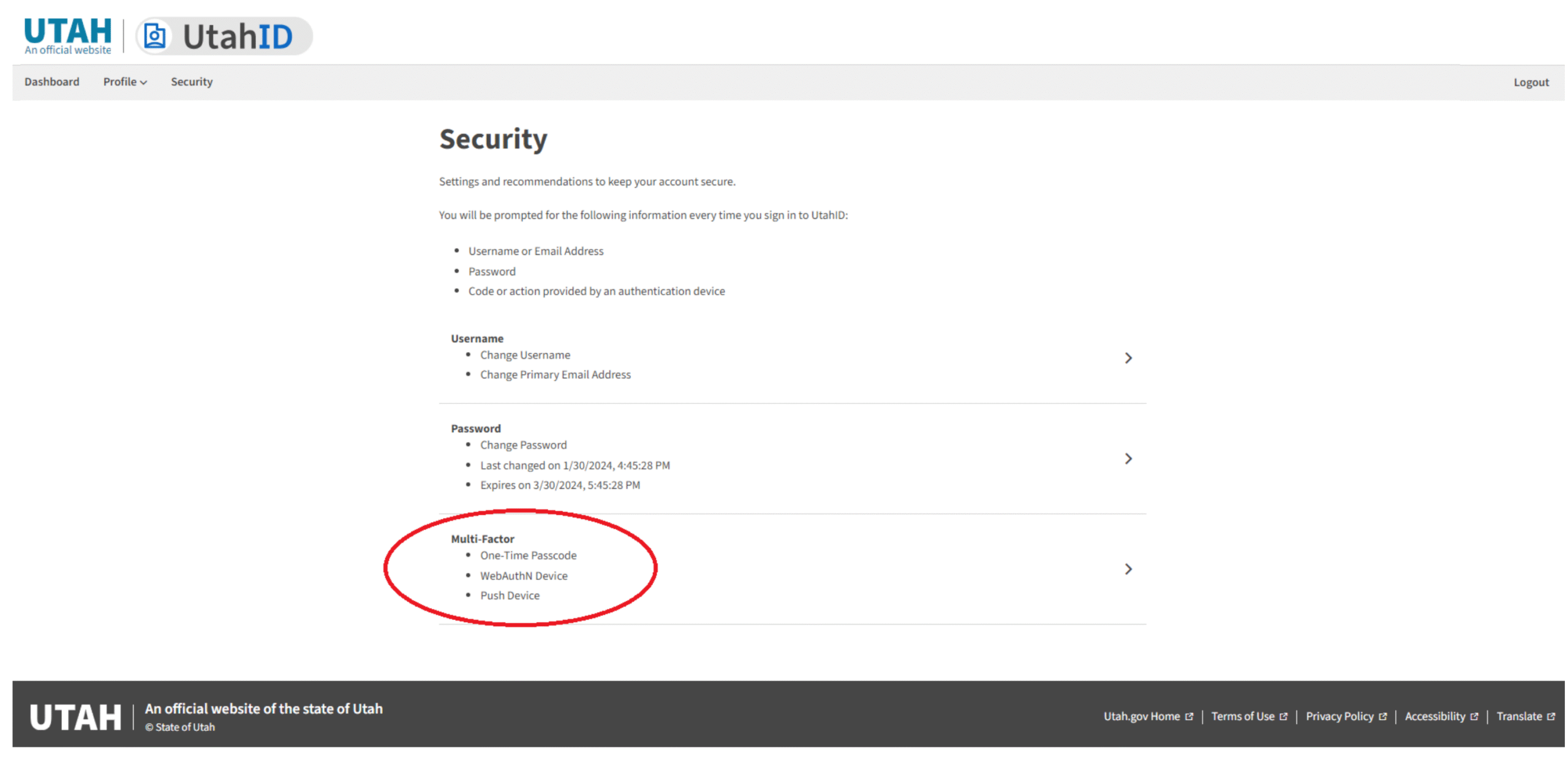
Select and click on the Multi-Factor section.
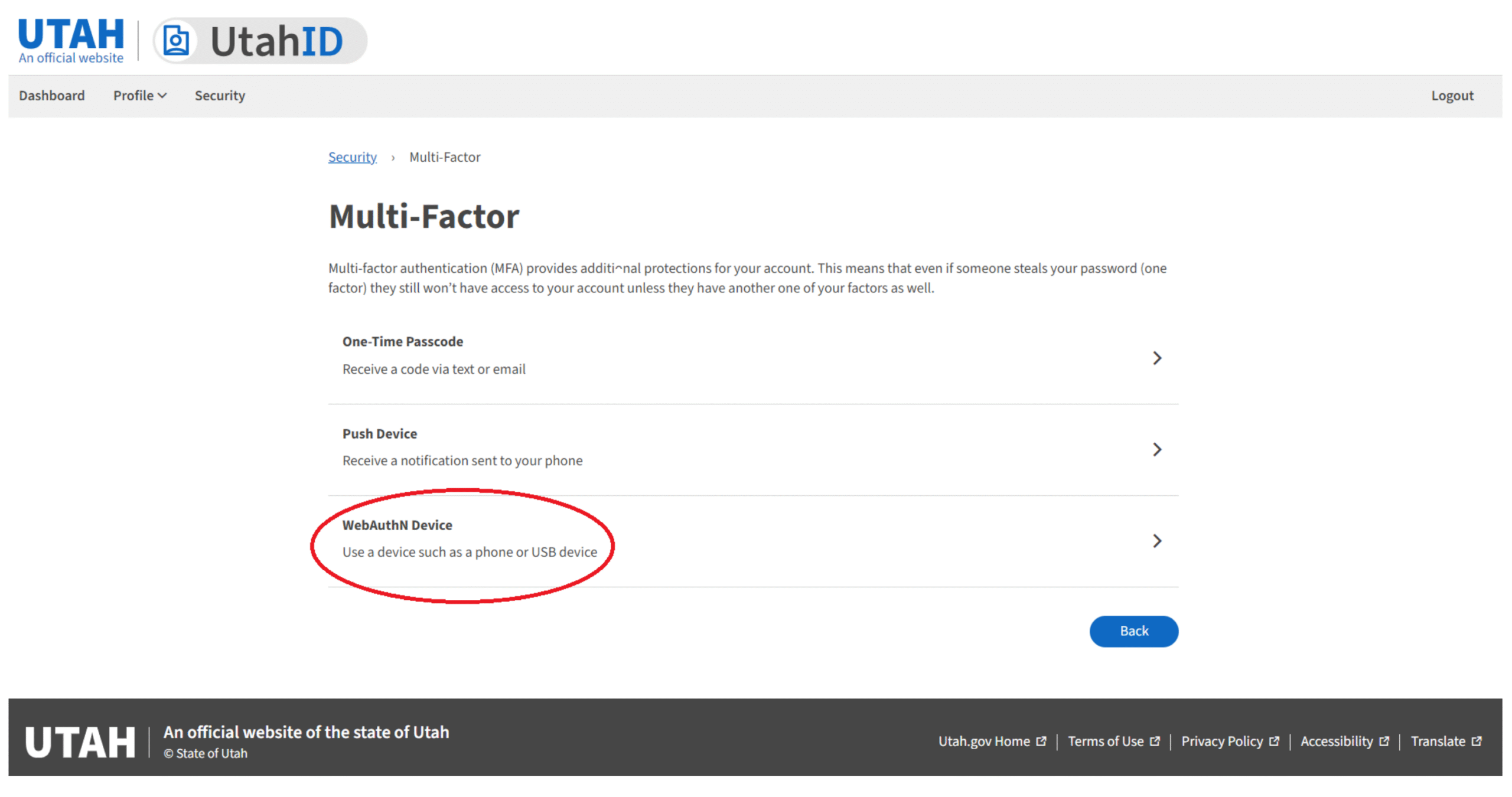
Click WebAuthN Device
On the Multi-Factor page, click on WebAuthN Device optionRegister Security Key or Create Passkey
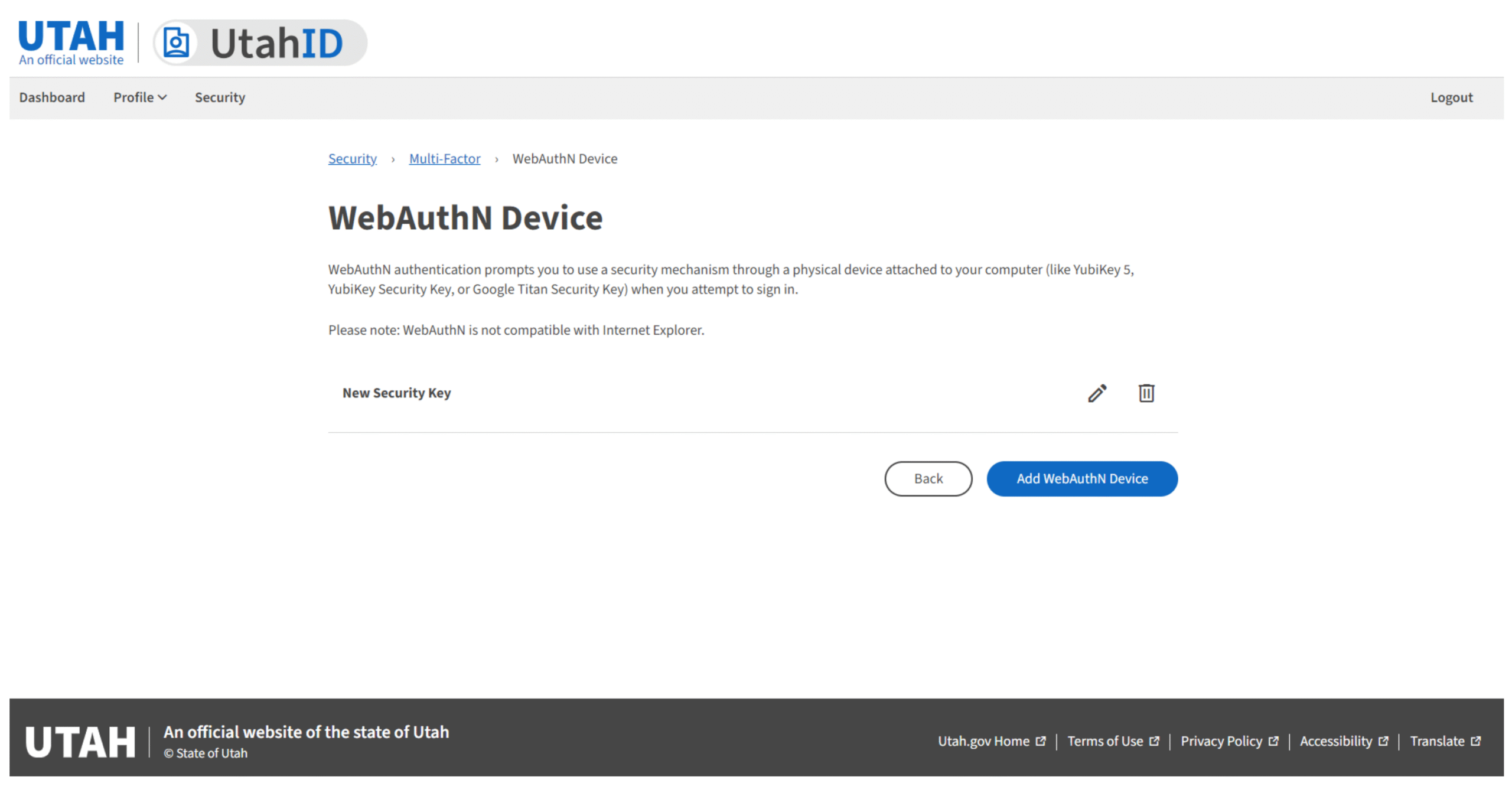
Click on Add WebAuthN Device button to register your security key or create a passkeyYou have an option to use a security key or a device with biometrics for authentication with
WebAuthn. Both Security Keys and Mobile Devices with Biometrics verify users through a
combination of something they know (PIN) or something they are (fingerprint, facial recognition etc.).Create a Passkey for Your Physical Security Key (Windows OS Users)
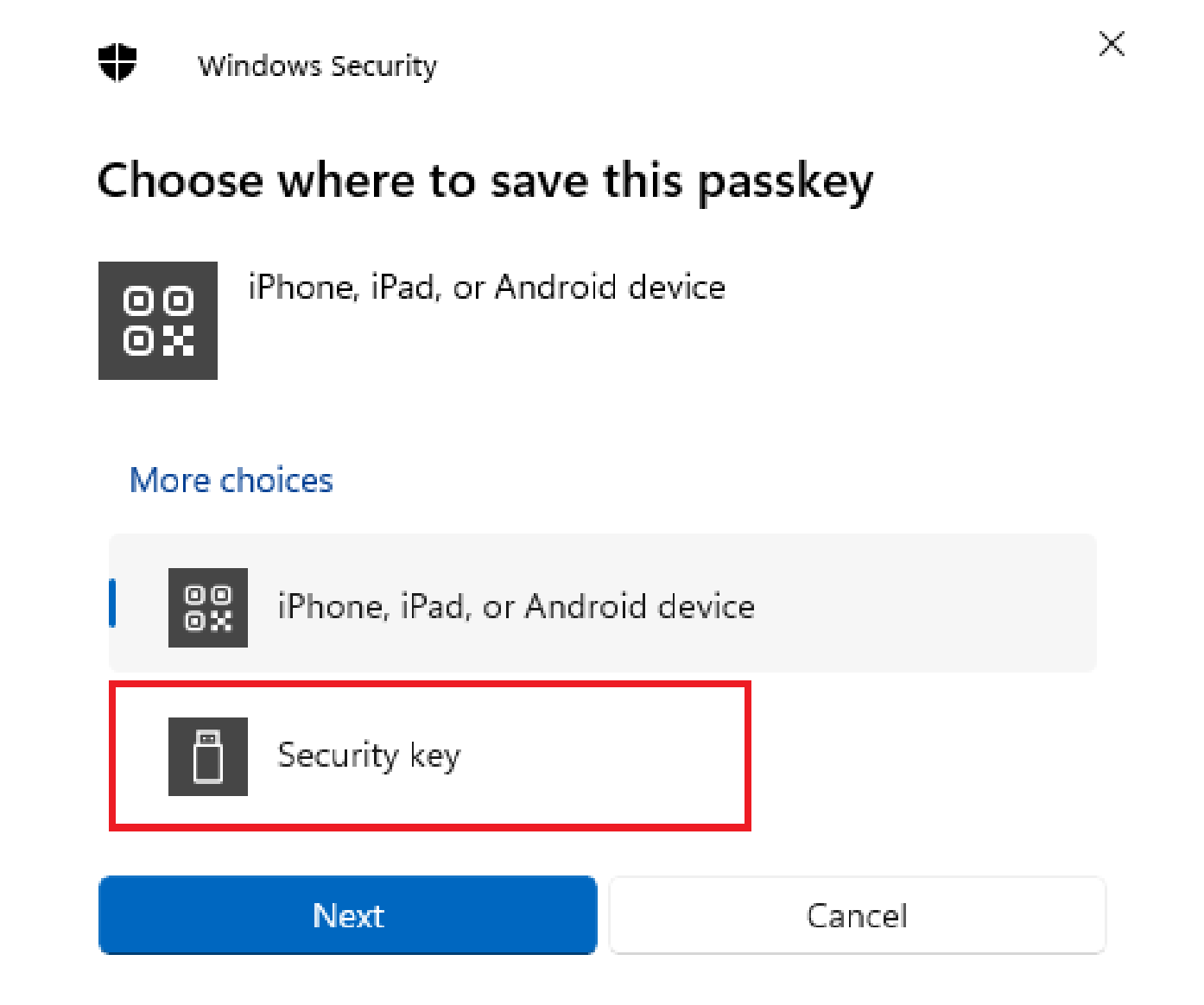
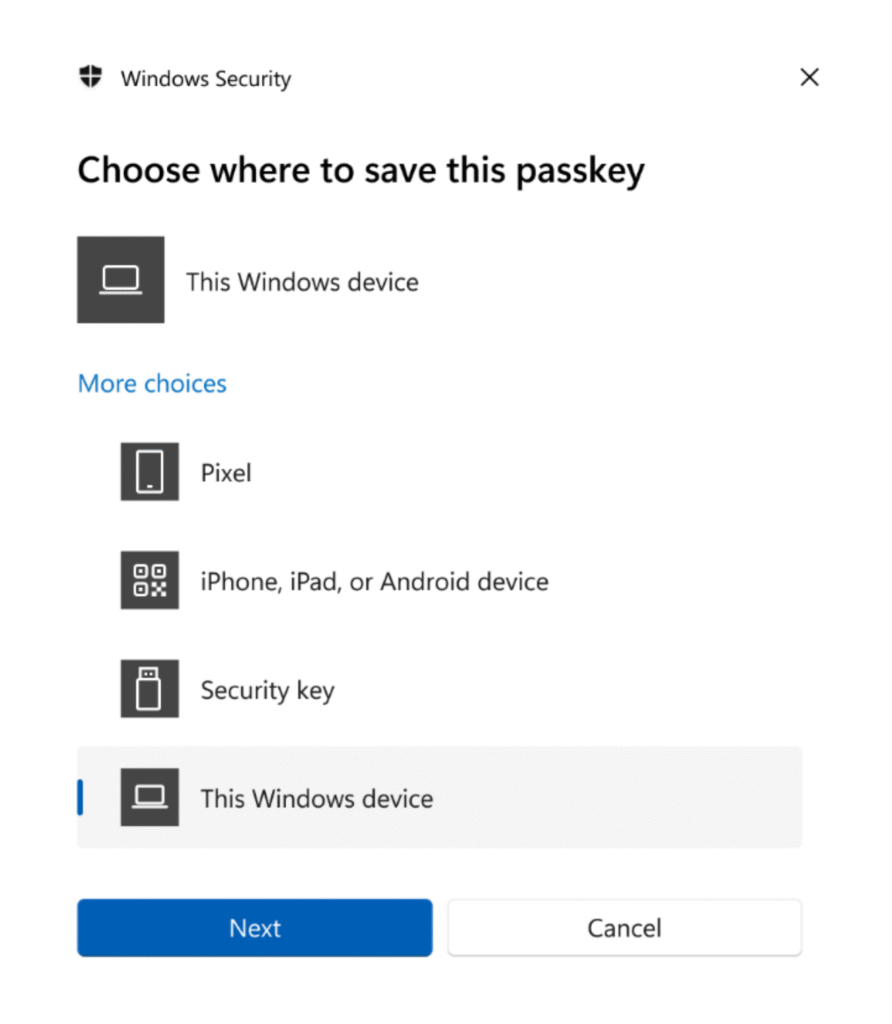
1. Select "security key" and follow the browser prompts to complete enrollment2. Insert the security key into a USB or USB-C port.
3. You should be prompted to create or enter a PIN for your security key, then
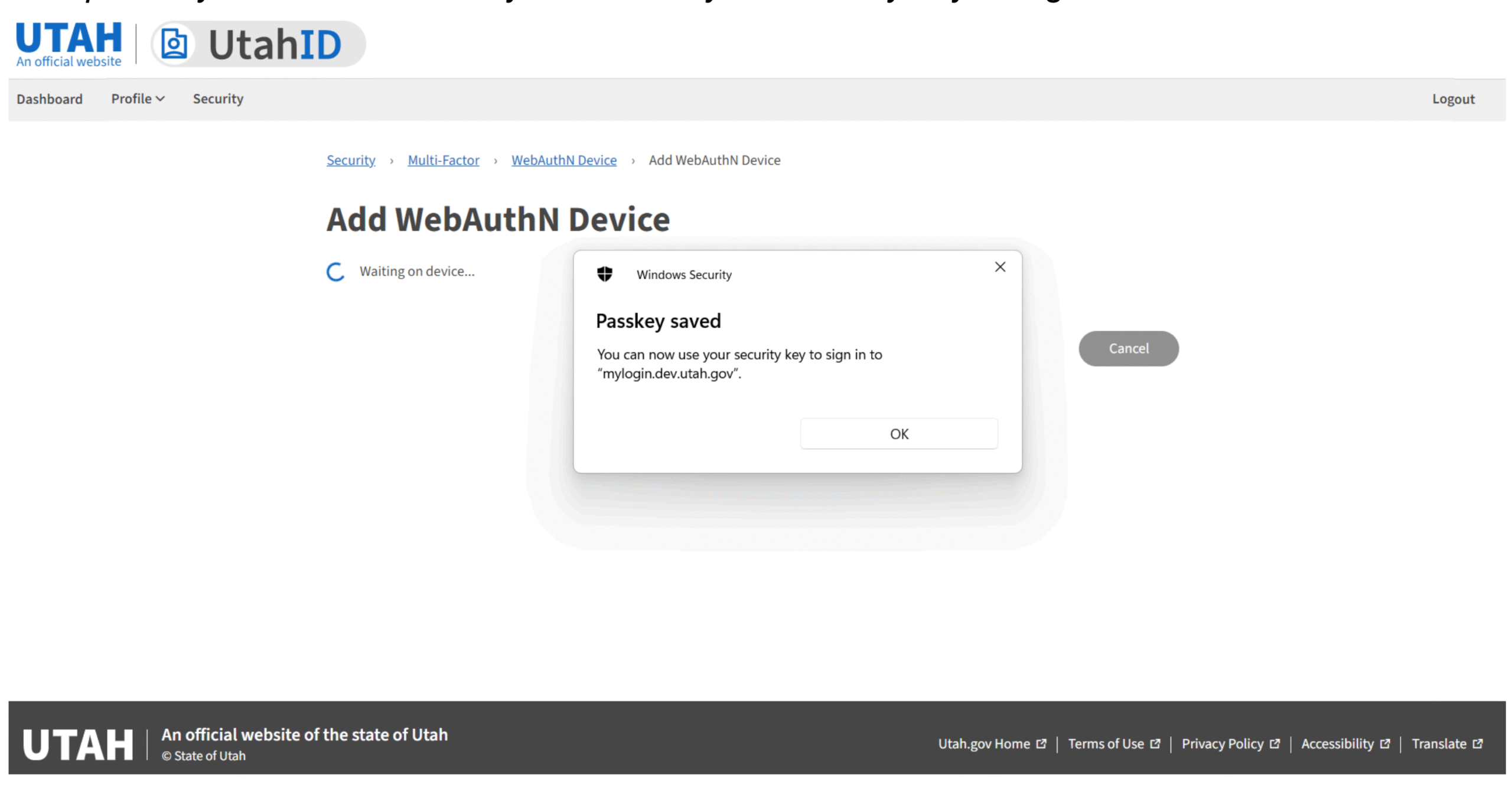
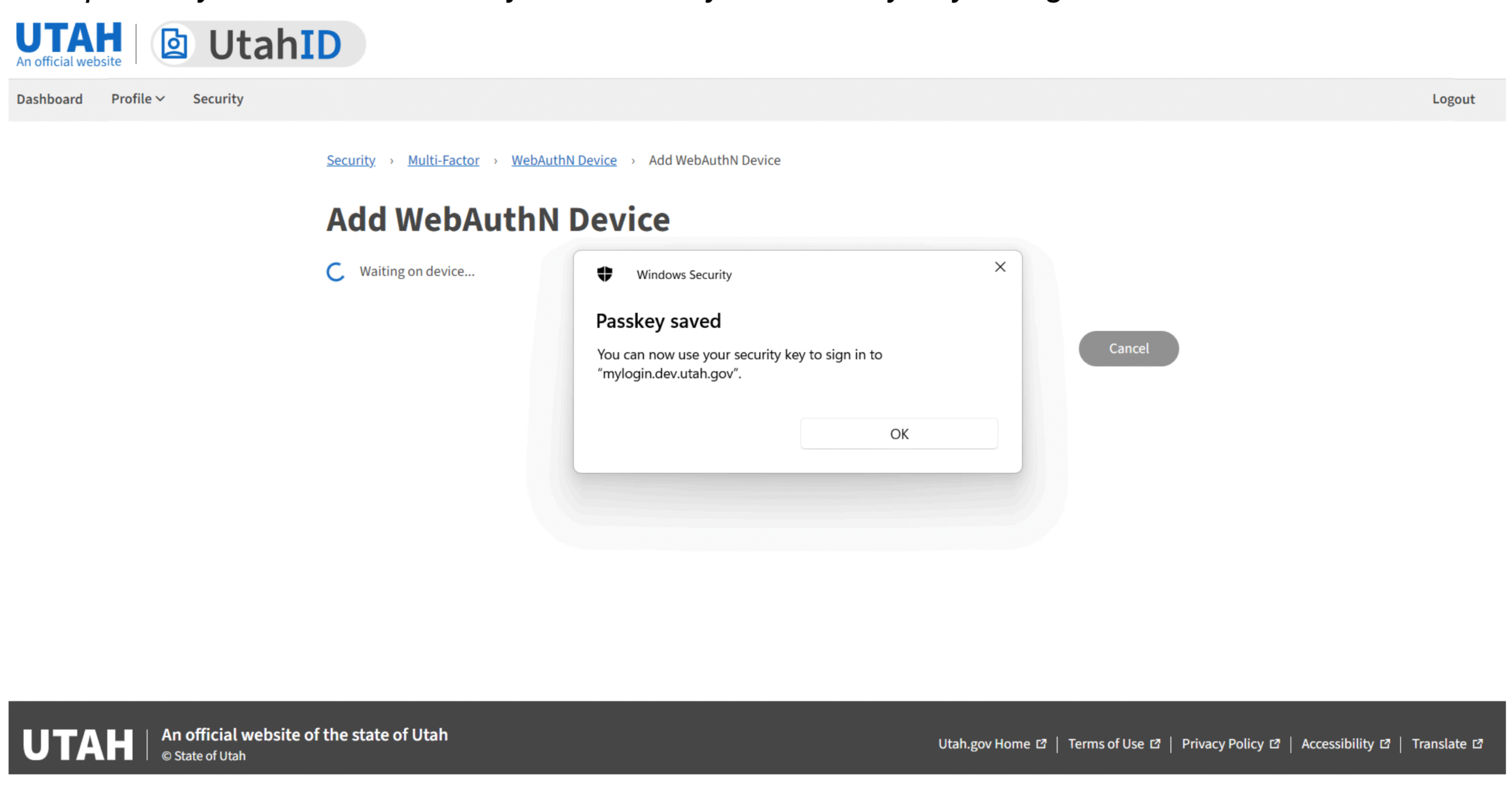
perform the required gesture for the key such as touching your security key.4. Your passkey is now saved and you can use your security key to login to UtahID.
Create a Passkey for Your Physical Security Key (Mac OS Users)
Passkey uses Touch ID or Face ID to identify you.
If your Mac or Magic Keyboard has Touch ID, you can sign in with Touch ID. You can also sign in with an iPhone or iPad by scanning a QR code and using Face ID to verify your identity.
When you sign up for a new account, enter an account name, then click to submit.
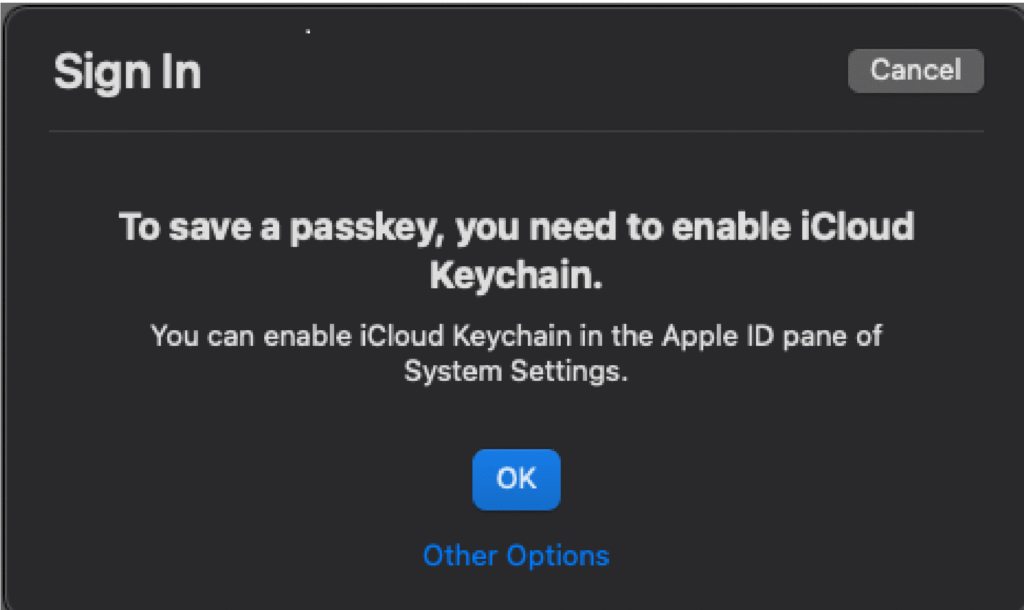
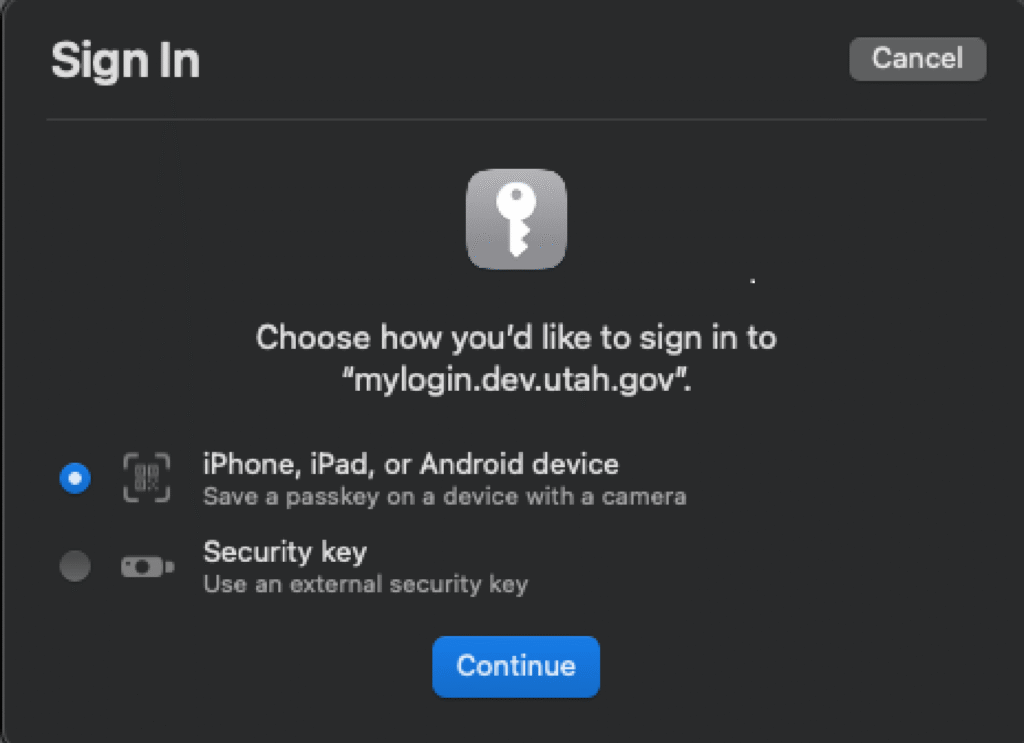
When you see the option to save a passkey for the account, choose how you want to sign in:
1. Touch ID on your Mac: Place your finger on the Touch ID sensor.
2. Scan a QR code with your iPhone or iPad: Click Other Options.
3. To set up External security key: Click Other Options.
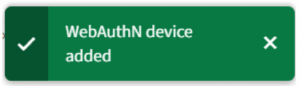
4. Select the Security key and follow the prompts.5. Once you registered your security key or a mobile device for authentication with WebAuthN you will receive a on screen confirmation that your WebAuthN device is added.6. You will be provided with the Recovery Codes which you must save and store securely. You must make a copy of these backup codes. They will not be displayed again.
You can use one of these codes to authenticate if you lose your security key or device.
7. Click on Ok and you will return to the WebAuthnN Device screen.
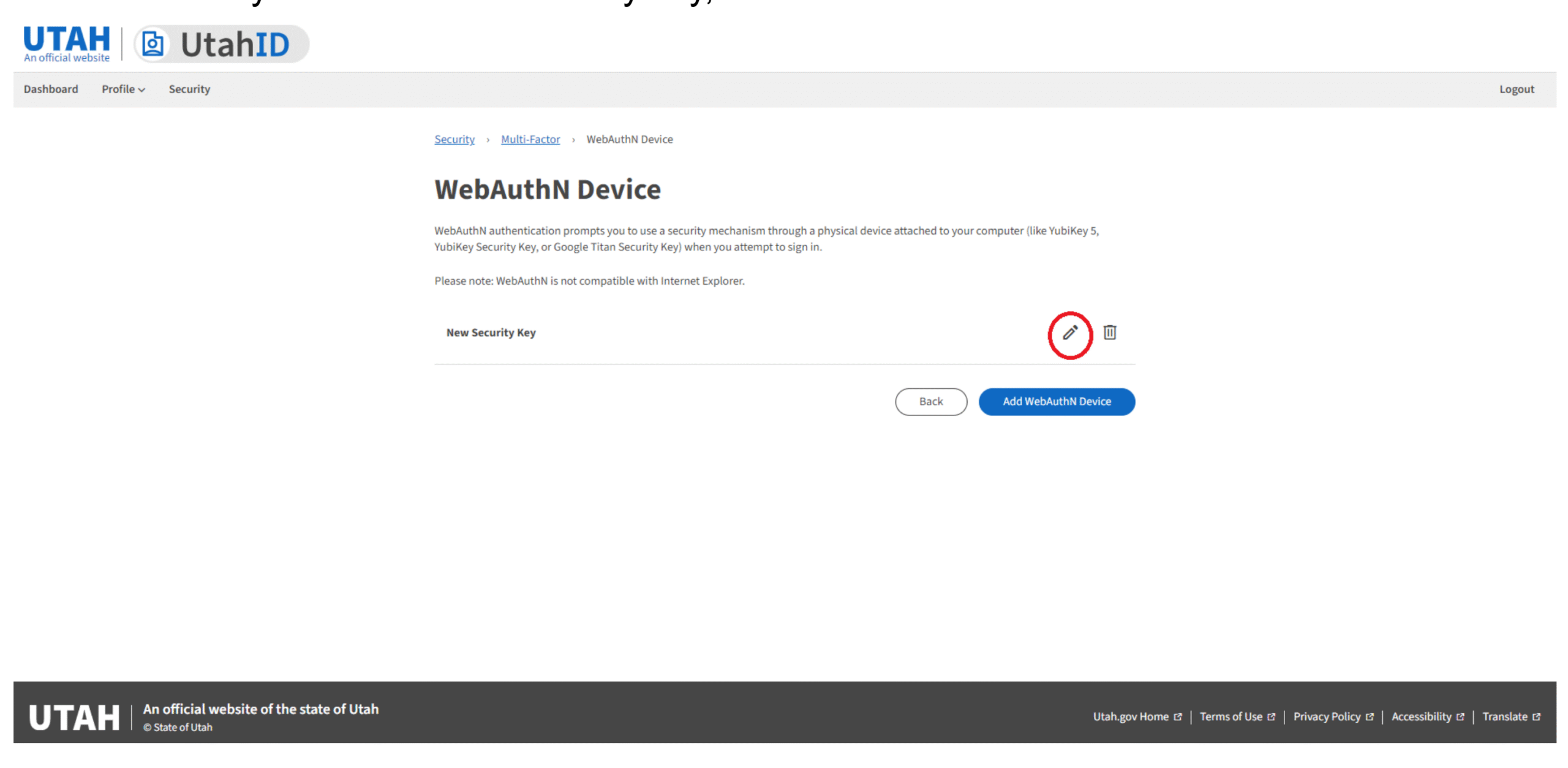
8. You should be able to see the WebAuthnN security key added, which you can Edit or Delete at any time.
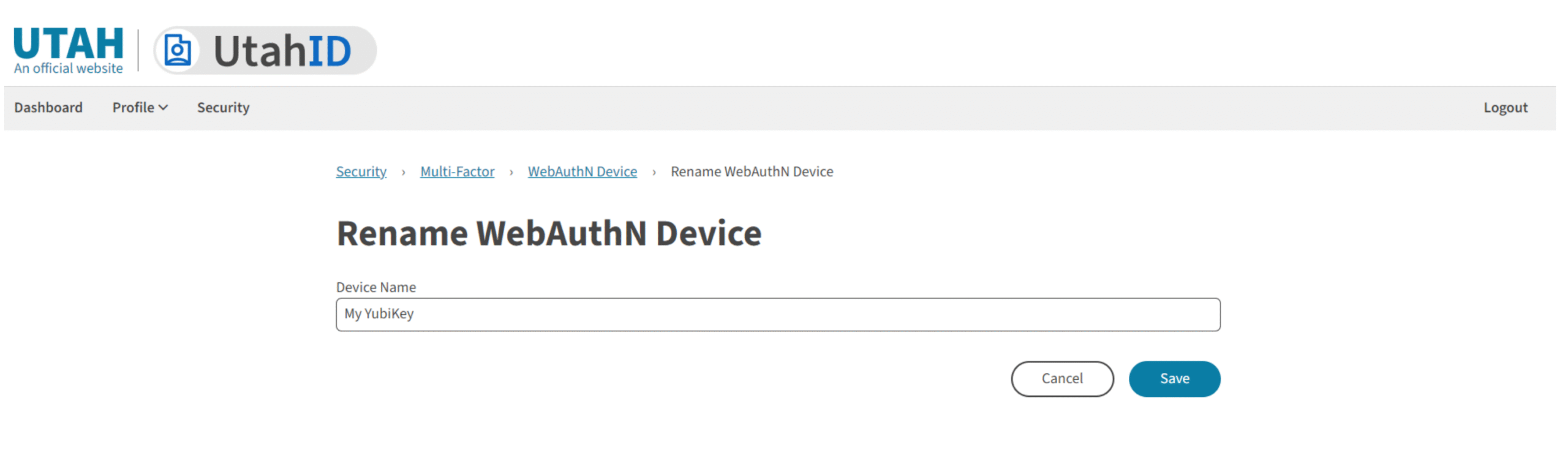
9. To rename your WebAuthN security key, click the edit button.
10. Type in your Device Name and click Save.
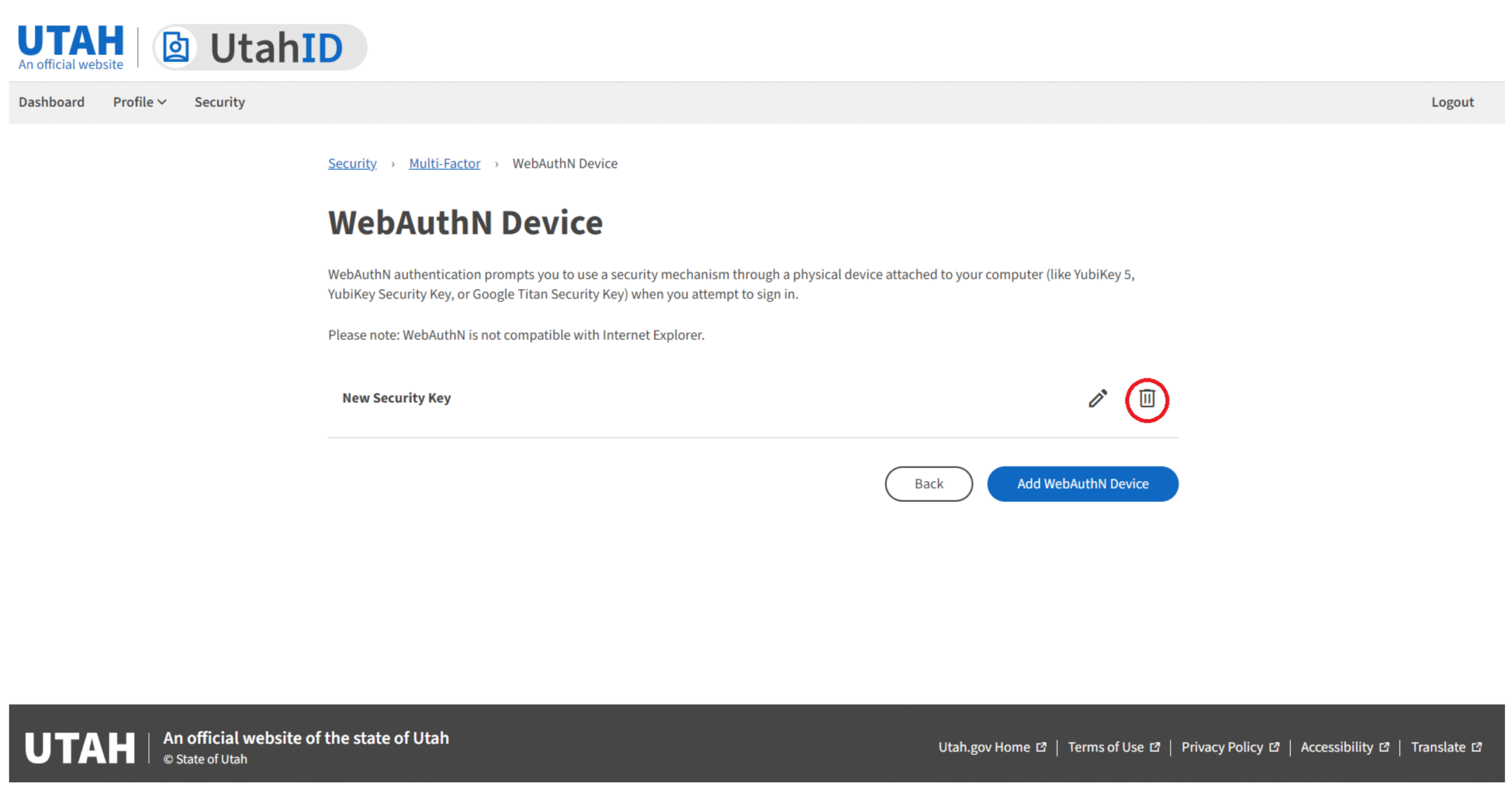
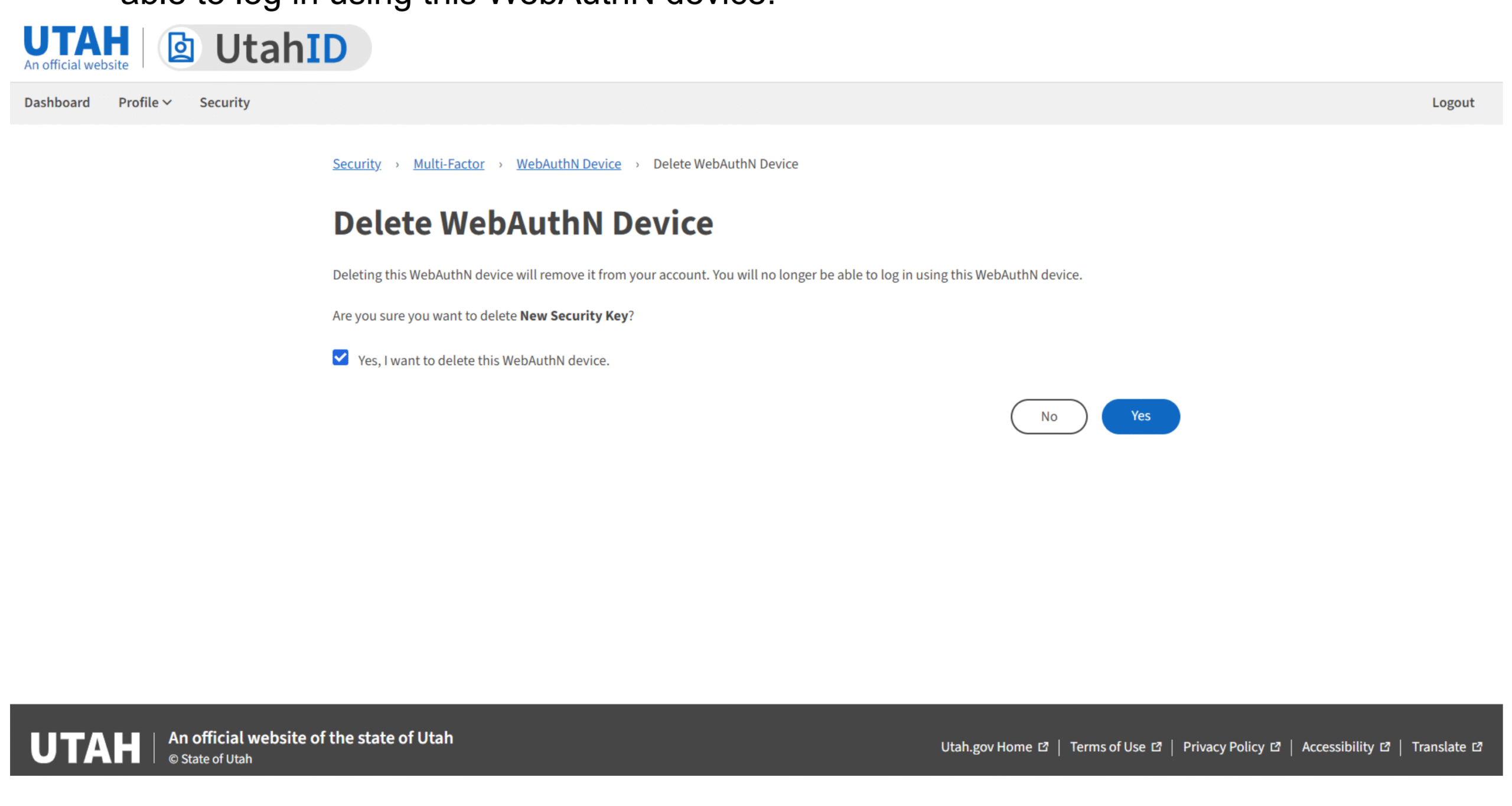
11. To delete your WebAuthN security key, click the trash bin button.
12. You will be prompted to agree to the conditions of deleting the WebAuthN device. By deleting this WebAuthN device will remove it from your account. You will no longer be able to log in using this WebAuthN device.
Registration is now complete.
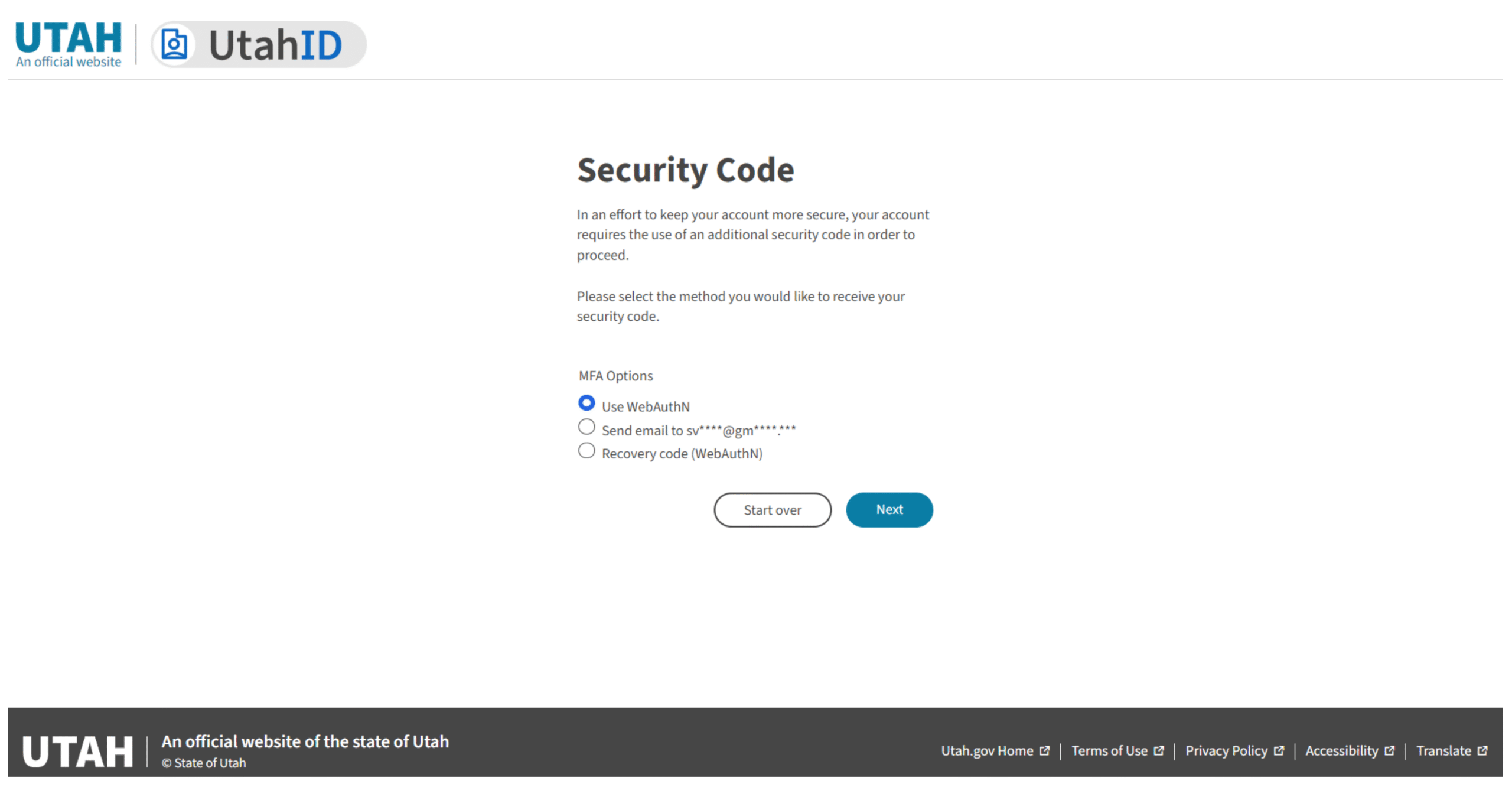
13. The next time you login to your UtahID account you will have an option to use one of the registered WebAuthN MFA options as an authentication method whenever you log in to your UtahID account.
Follow on screen prompts to login. Remember, specific instructions may vary depending on the type of the security key, browser and OS you are using, so be sure to follow any additional guidance provided during the setup process.
Create a passkey for your device with biometrics (All OS)
You can save the passkey in one of the mobile devices: iPhone, iPad or Android device. The passkey is saved on a phone or tablet, protected by the device's biometrics, if offered by the device.
This option requires you to scan a QR code with your phone or tablet, which must be in proximity of the Windows device.
1. Select iPhone, iPad or Android device and follow the browser prompts to complete enrollment.2. Scan the QR code with your phone or tablet. Wait for the connection to the device to be established and follow the instructions to save the passkey3. Approve Authentication: Once the QR code is scanned, your device will prompt you to confirm the authentication request. This may involve providing biometric authentication (such as fingerprint or facial recognition) or entering a PIN.
4. Once the passkey is saved to your phone or tablet, select OK. Your passkey is saved you can use it to sign in to mylogin.utah.gov next time you login.
Set Up an Account to Use WebAuthN
WebAuthN, short for Web Authentication,is a web standard that helps you log into websites securely using your fingerprint or a USB device instead of passwords. WebAuthN makes logging in safer and easier