Set Up Push Authenticator MFA
Install the ForgeRock Authenticator
To install ForgeRock Authenticator, follow these steps:
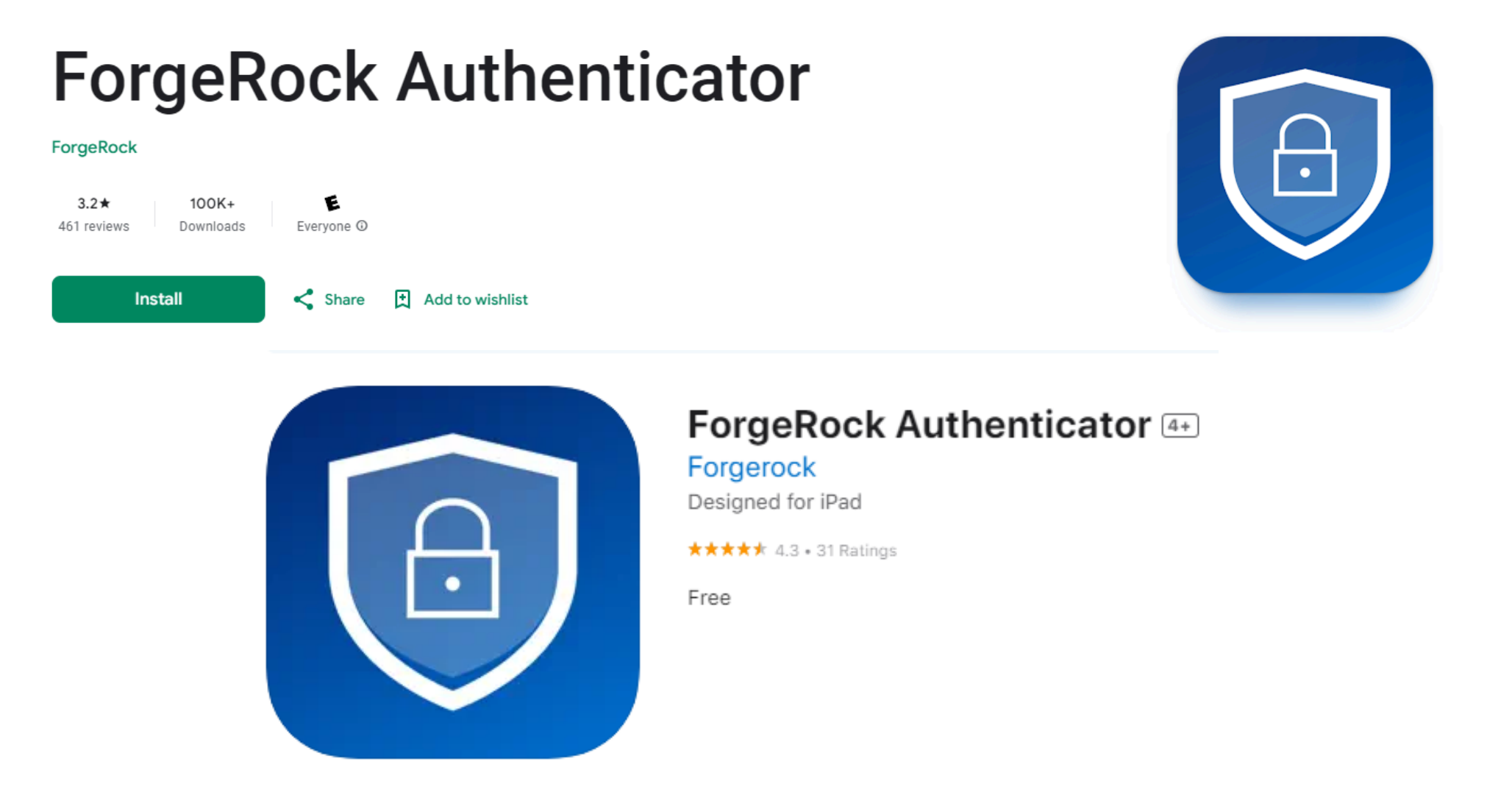
- Visit the App Store: Go to the Apple App Store or Google Play Store on your device, depending on your device type.
- Search for "ForgeRock Authenticator": Use the search function within the app store to find the ForgeRock Authenticator app. See the images below for downloading the correct app and not a copycat application.
- Download the App: Once you find the ForgeRock Authenticator app, tap on it, then tap the "Install" or "Download" button to begin the installation process.
Sign In
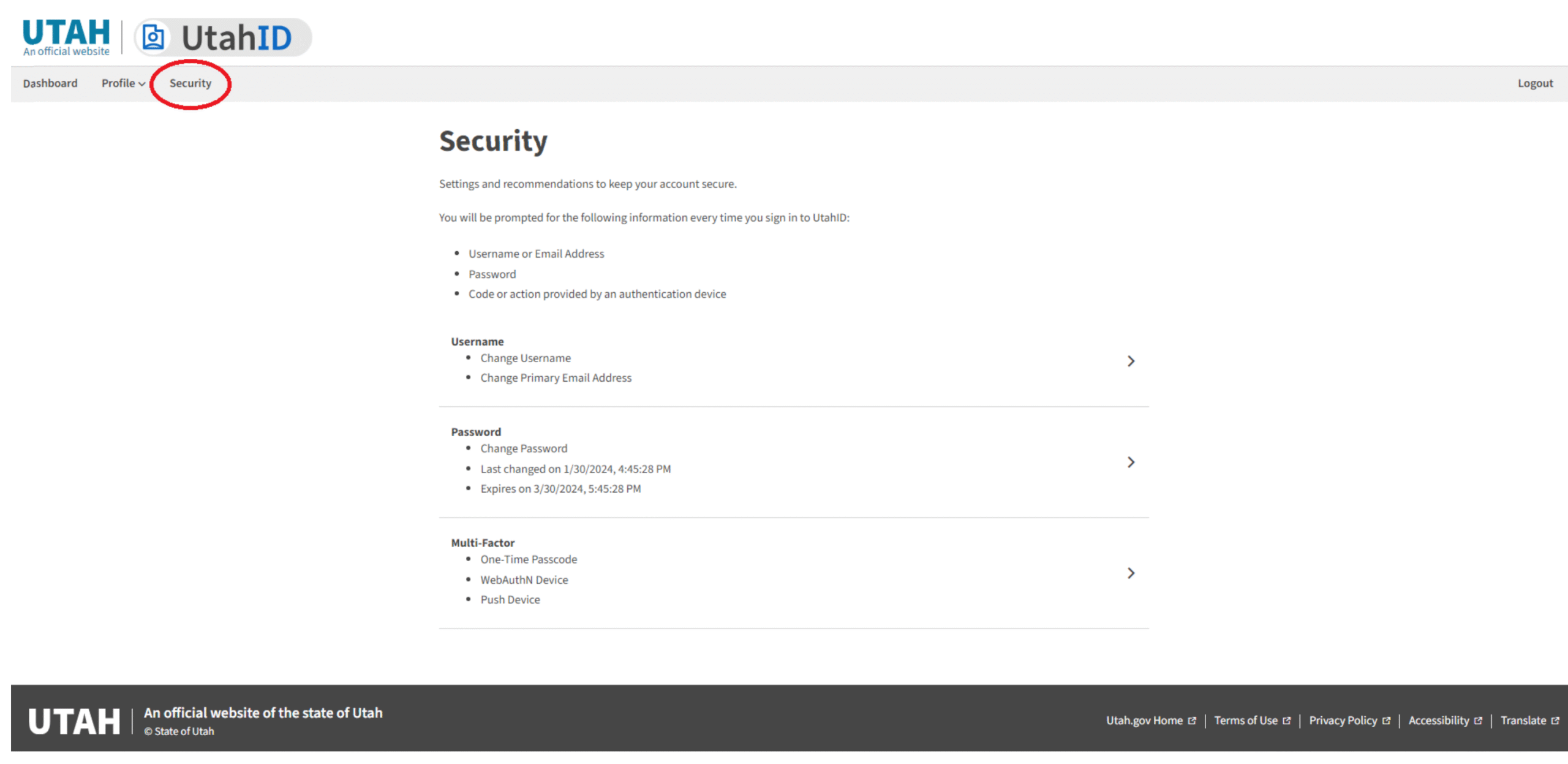
Once the ForgeRock Authenticator app is installed on your device, go to https://mylogin.utah.gov and login to the UtahID site.Select Security - Main Menu
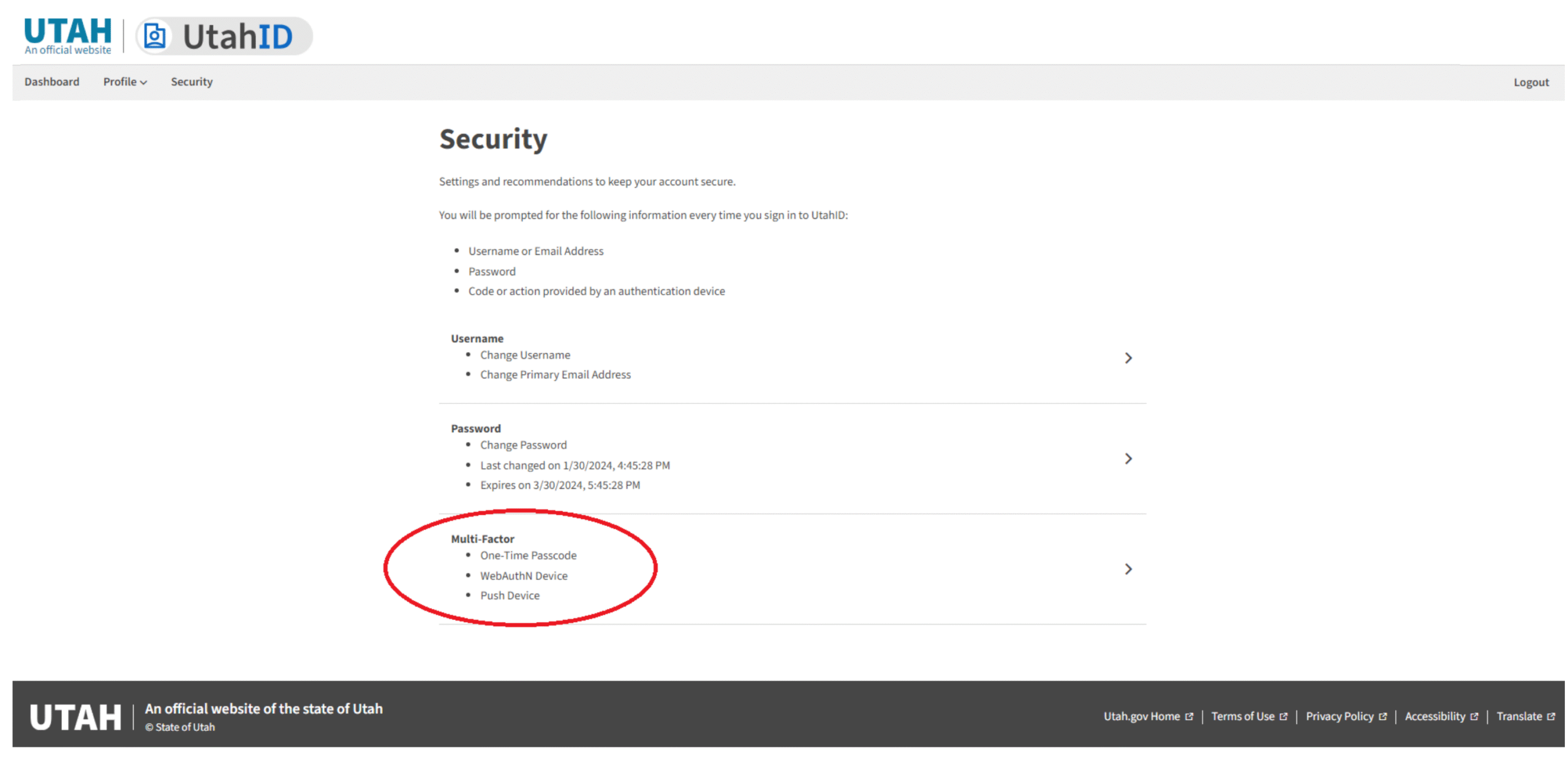
Once logged in to the UtahID, select the Security menu item on the Main Menu (gray bar)Select Multi-Factor Section
Select and click on the Multi-Factor section.
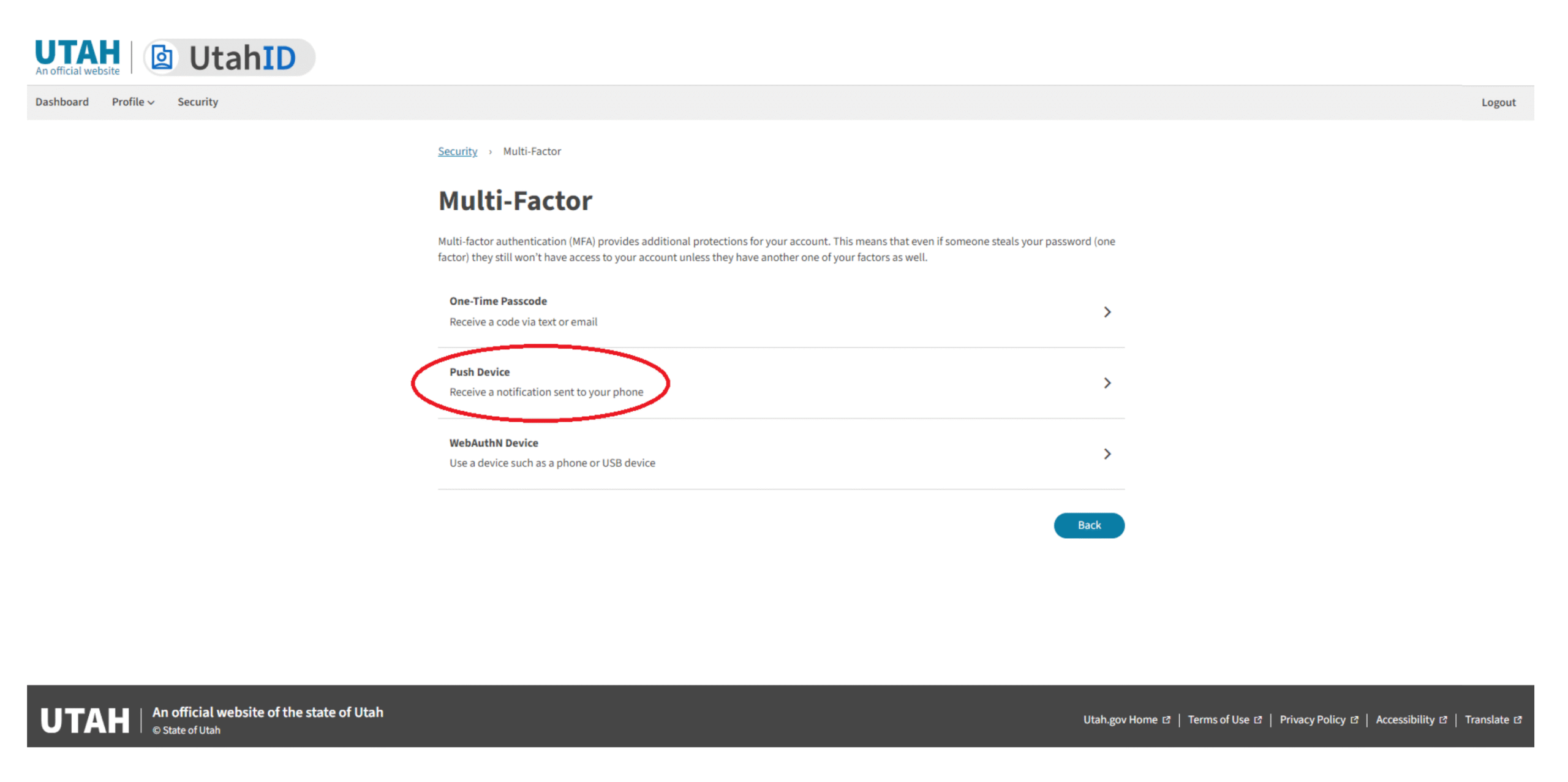
Click Push Device
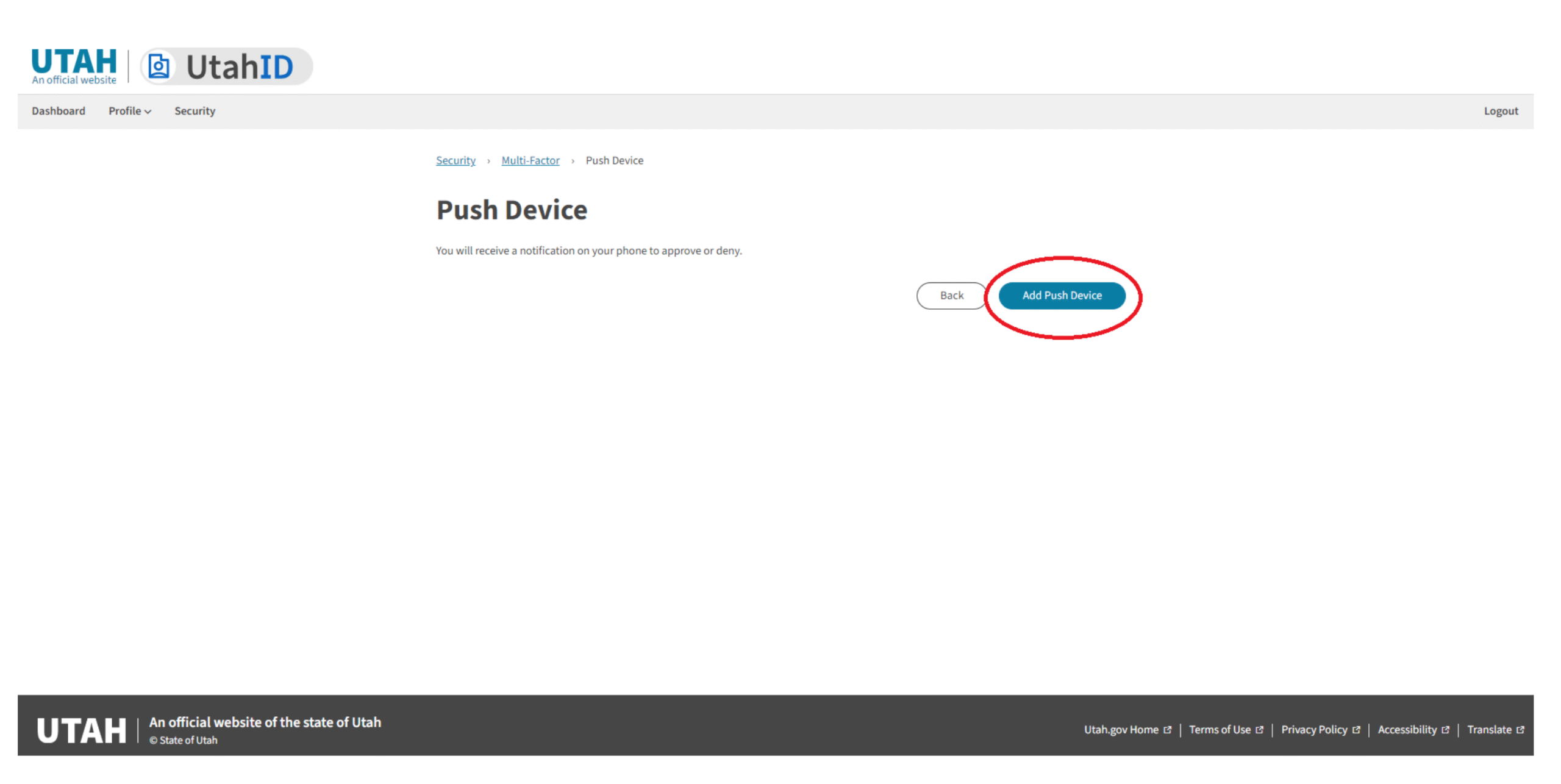
On the Multi-Factor page, click on Push Device option.Add Push Device
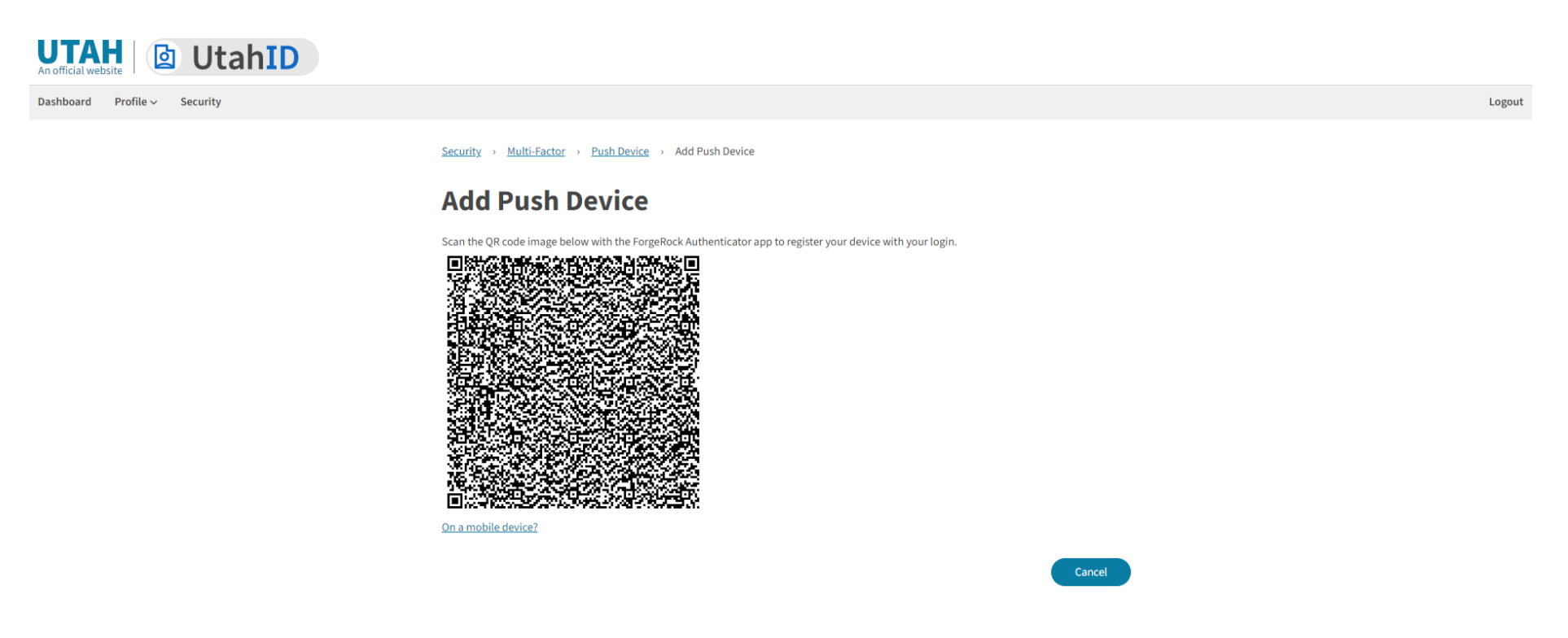
Select and Click on Add Push Device button to register the ForgeRock Authenticator as an MFA option.Scan QR code
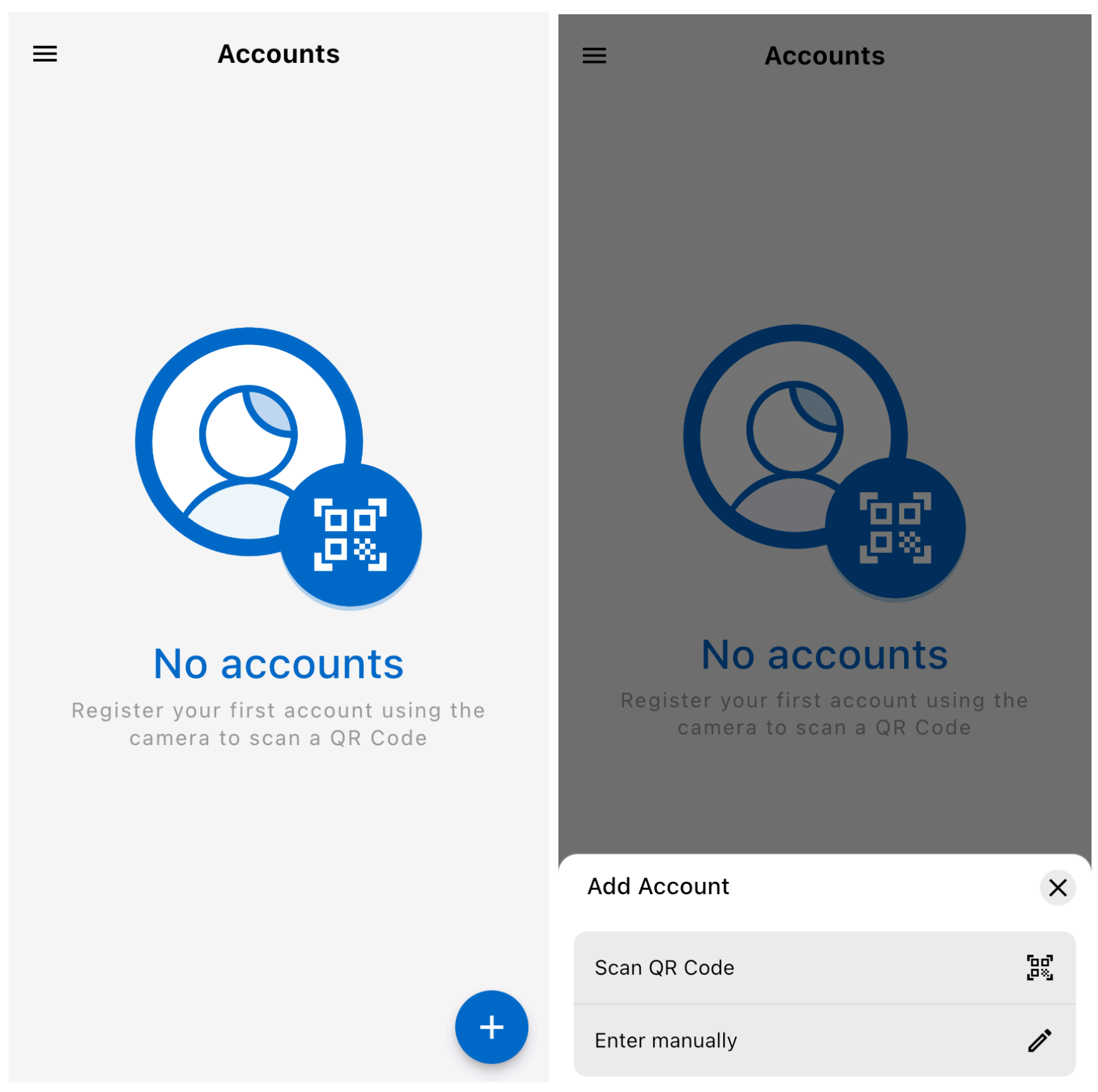
Launch the ForgeRock Authenticator app on your mobile device and tap the "+" icon at the bottom right of the screen and select Scan QR code.Scan the QR code displayed on the computer screen provided by UtahID, position your mobile camera so that the QR code is in the center of the viewscreen.Push Device Added
Your push device is now added.Recovery Codes
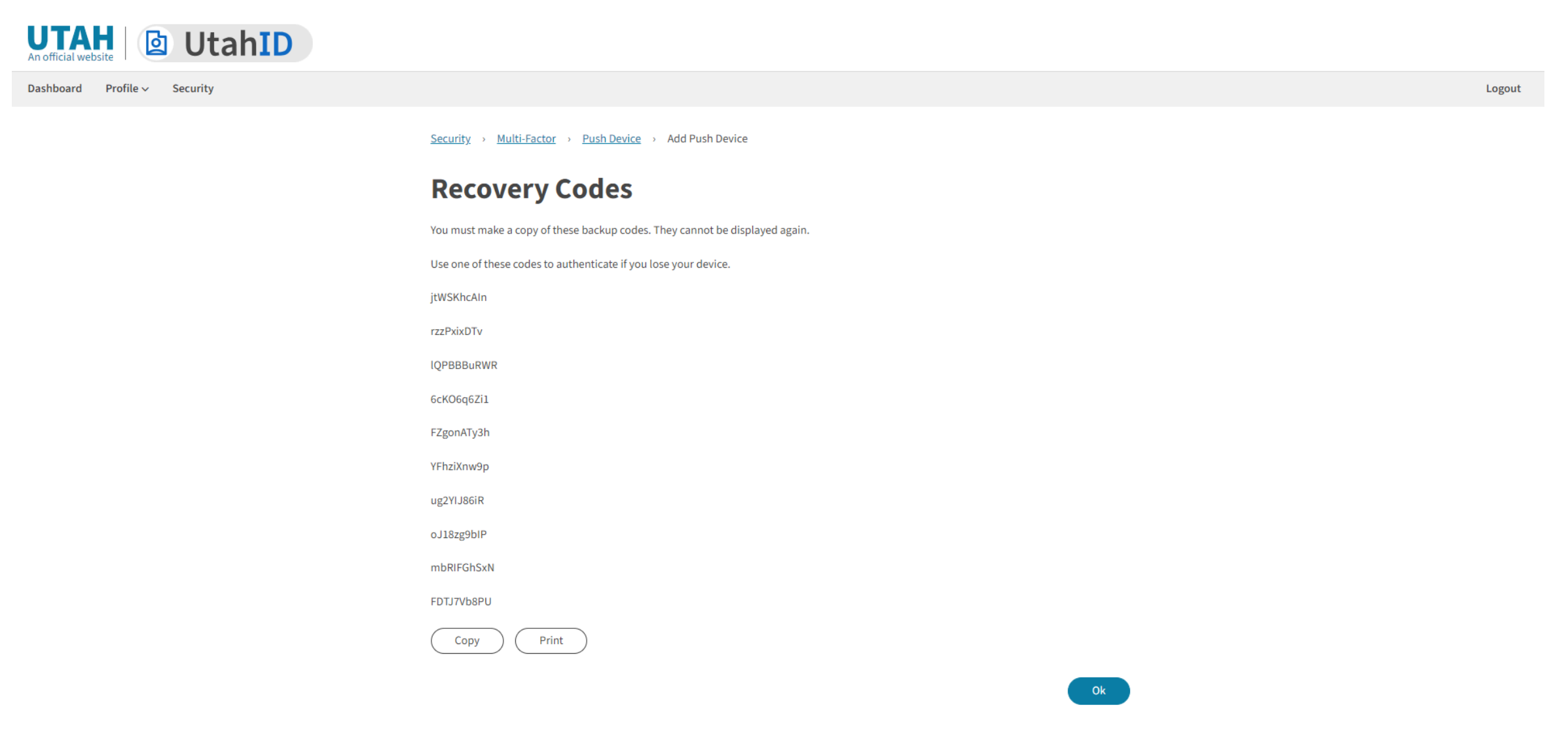
You will be provided with the Recovery Codes. You must make a copy or print these backup codes. They cannot be displayed again.
These are one‐use codes to authenticate to MFA when you don’t have your phone available. You will also need to use a recovery code if you change phones, delete your account from the Authenticator App, remove the App from your mobile device or if you just want to change the type of MFA you use.
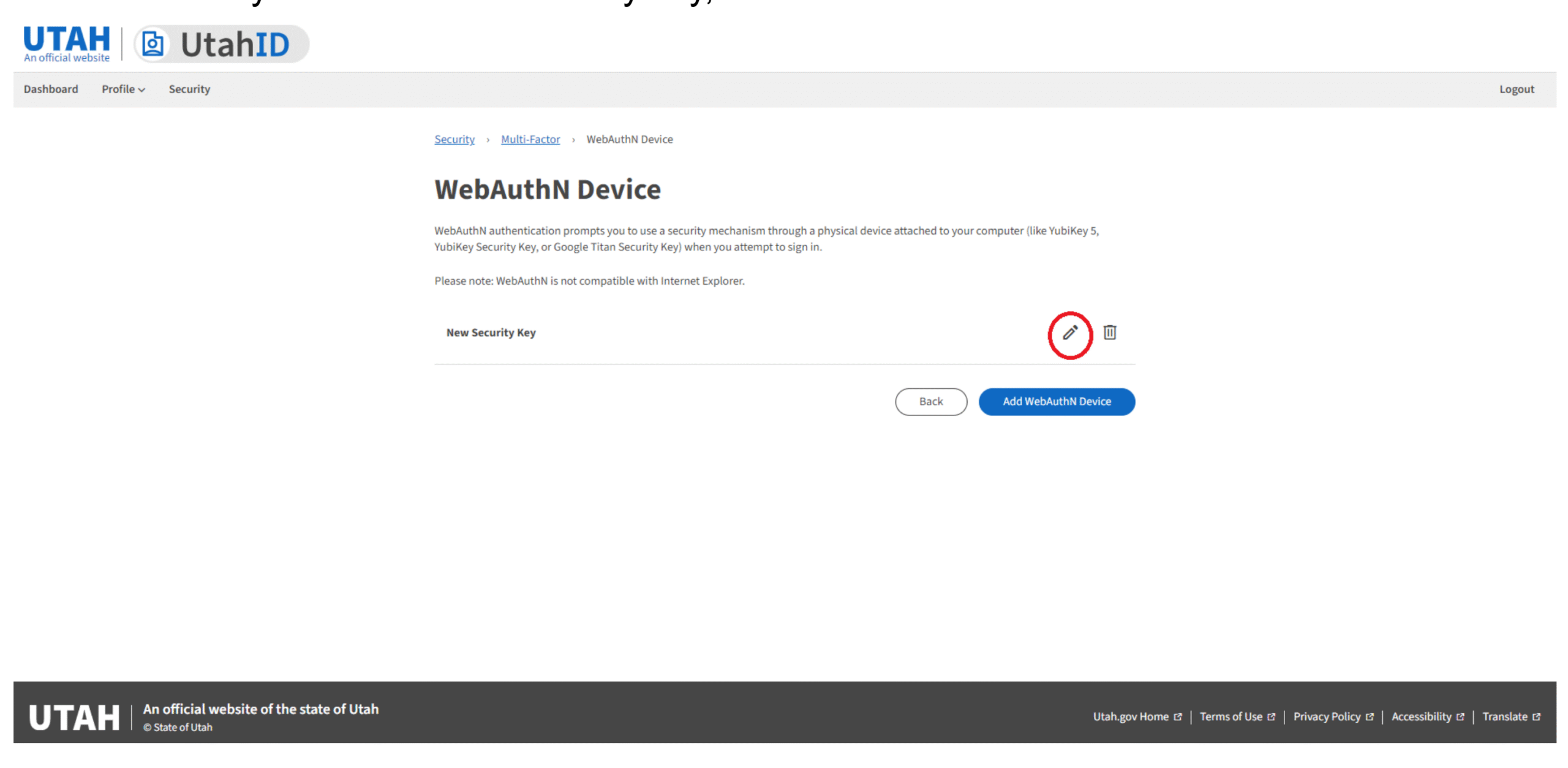
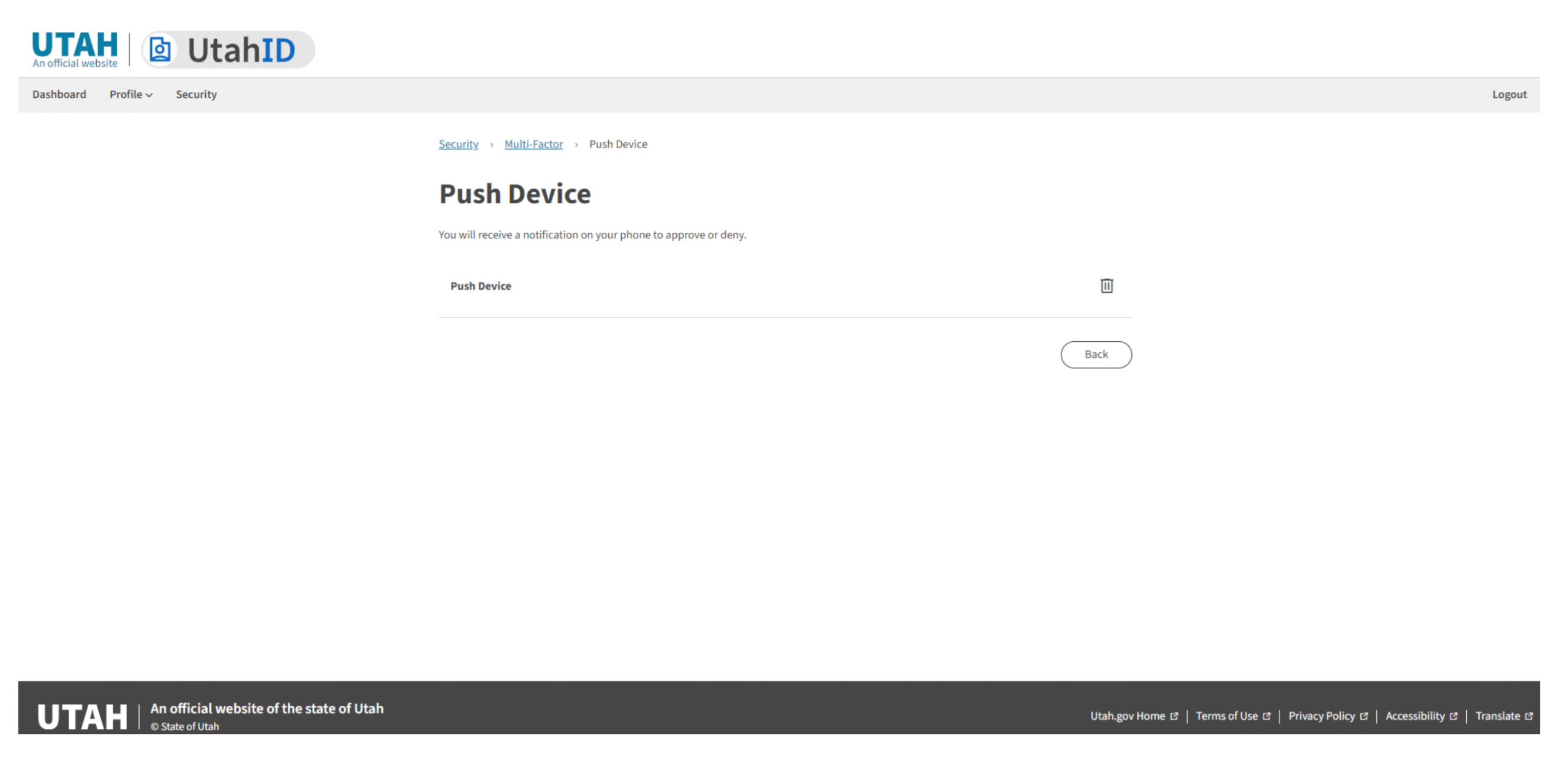
Click on the Ok button and you will return to the Push Device screen. You will be able to see the Push Device added, which can be deleted at any time.Logging In
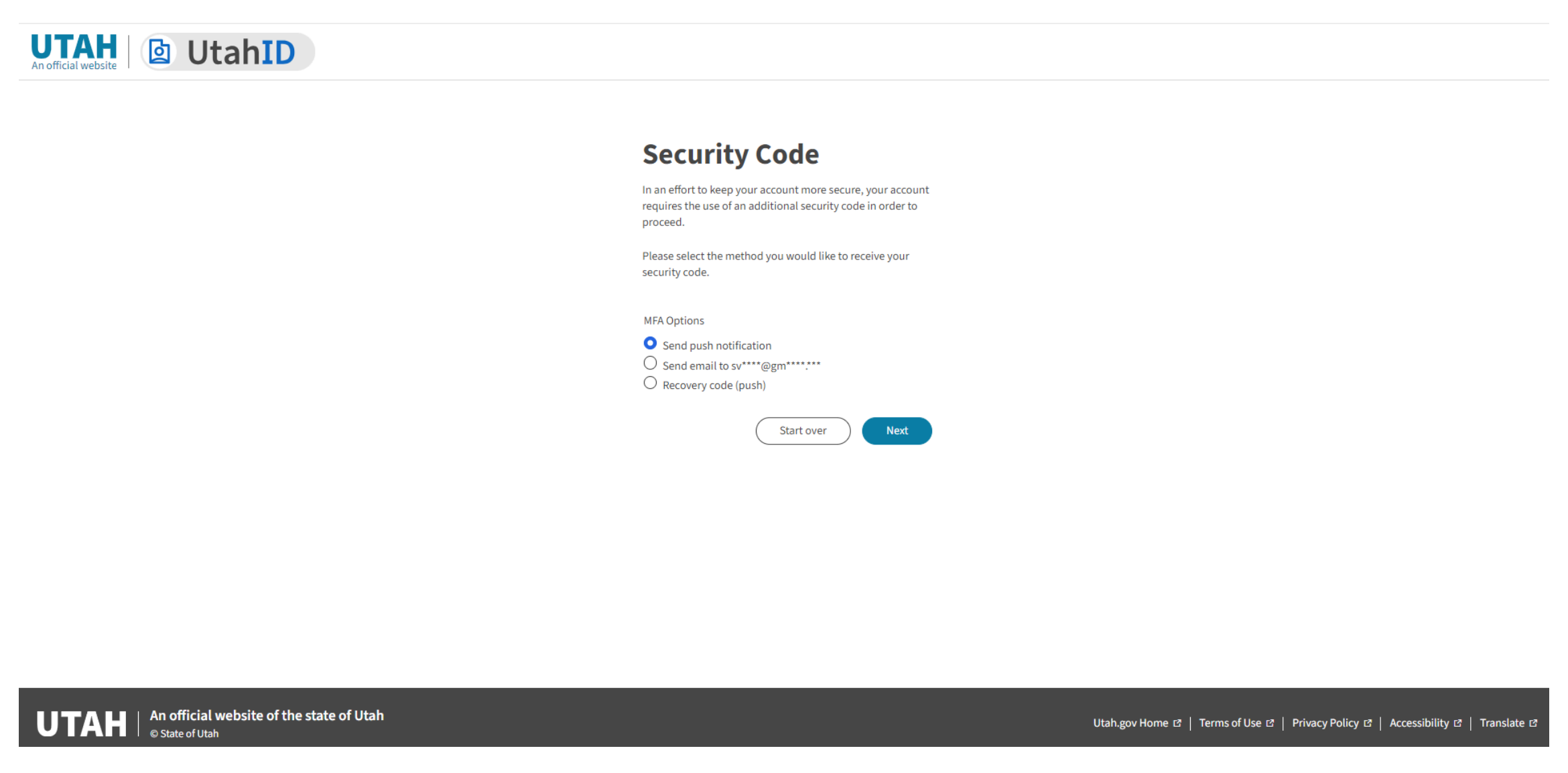
The next time when logging into UtahID, you'll have an option to use ForgeRock Authenticator in addition to your password for added security.
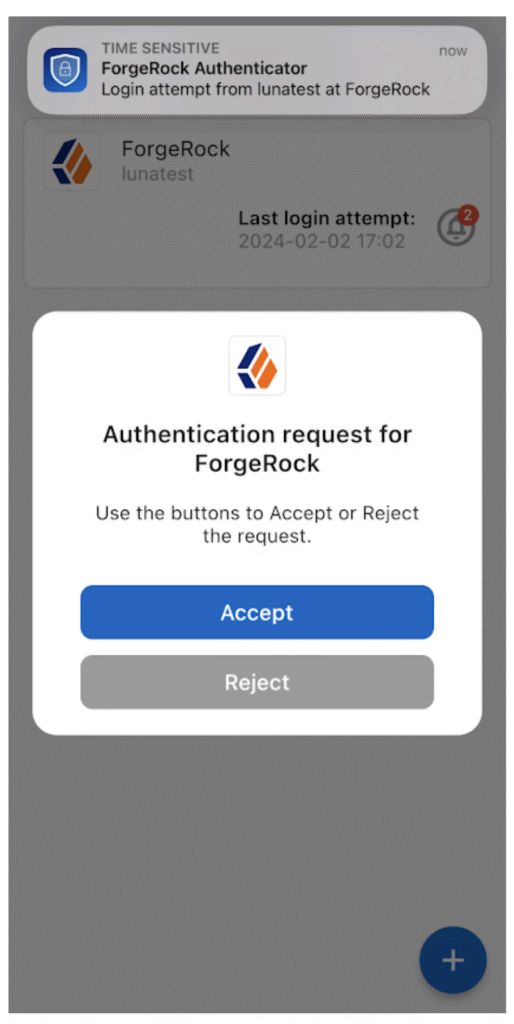
To test the multi-factor authentication setup, log out and log back into UtahID. Select and click on "Send push notification."
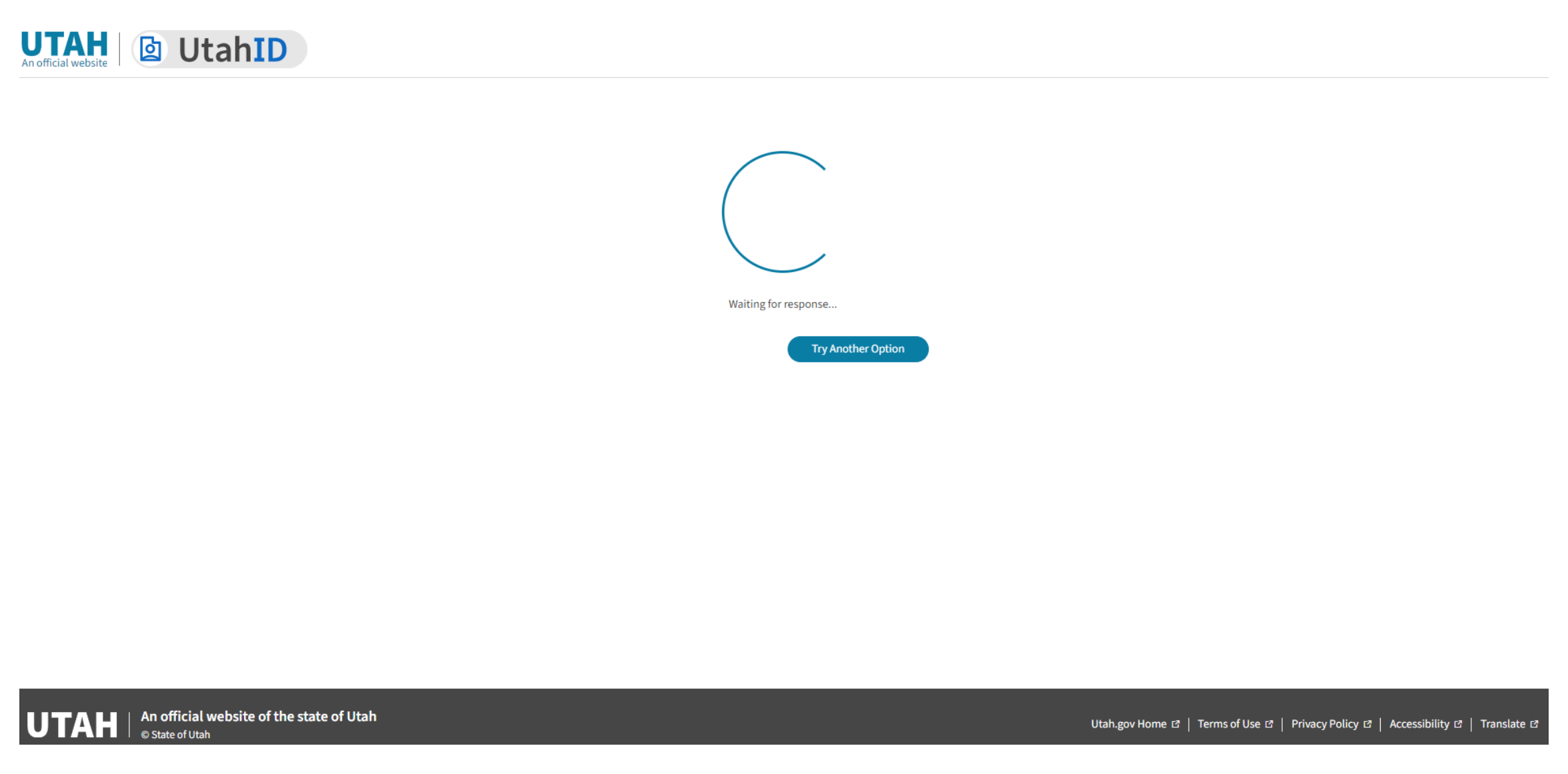
Your UtahID screen will display a spinning wheel, indicating that a push notification has been sent to your mobile device through the ForgeRock Authentication Application.Click “Accept” on your mobile device to Accept the authentication request on your ForgeRock Authentication app.Success!
You have now successfully registered for MFA using Push Notification with the ForgeRock Authenticator App. Going forward, when logging in to UtahID, you may receive push notifications on your device prompting you to approve or reject the authentication request. Remember to only accept the push notifications when you initiate them.
Set Up an Account to Use ForgeRock Authenticator
The ForgeRock Authenticator Application will need to be installed on your device prior to registration. To download the ForgeRock Authenticator Application refer to the Application Installation instructions below.