Removing MFA options
Sign in
Go to https://id.utah.gov and sign in to UtahID.Select Security - In the Top Menu
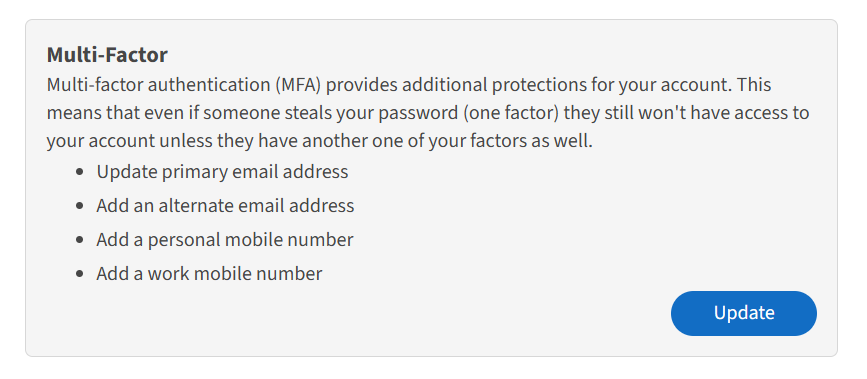
Select the Security link in the top menu, scroll down to the Multi-Factor sectionUpdate Multi-Factor Information
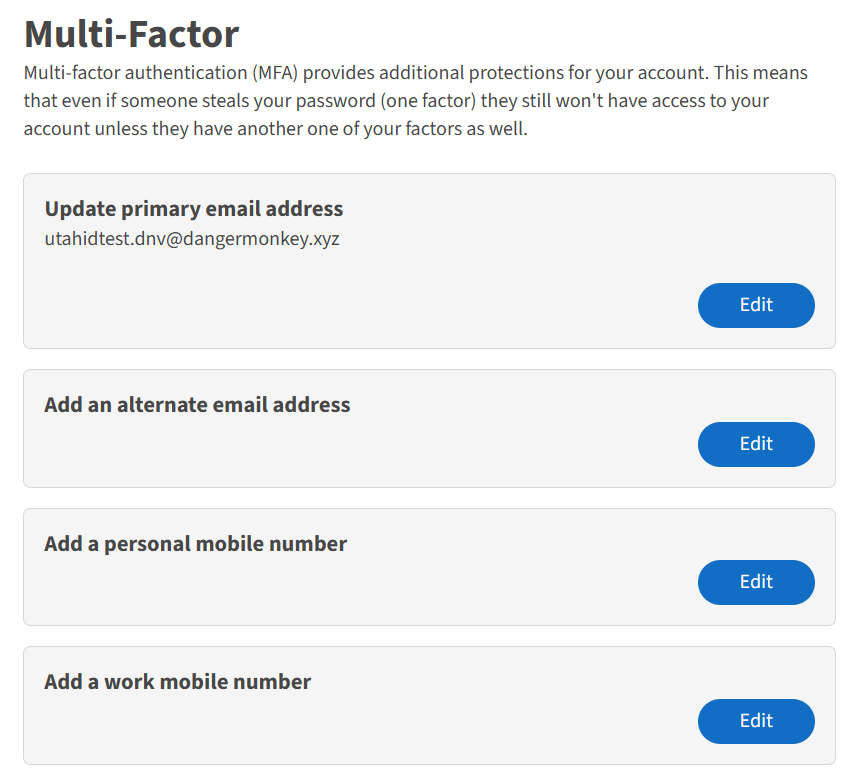
You can do one or all of the following actions:
- Update primary email address
- Add an alternate email address
- Add a personal mobile number
- Add a work mobile number
Click the Edit button by each option to make changes.
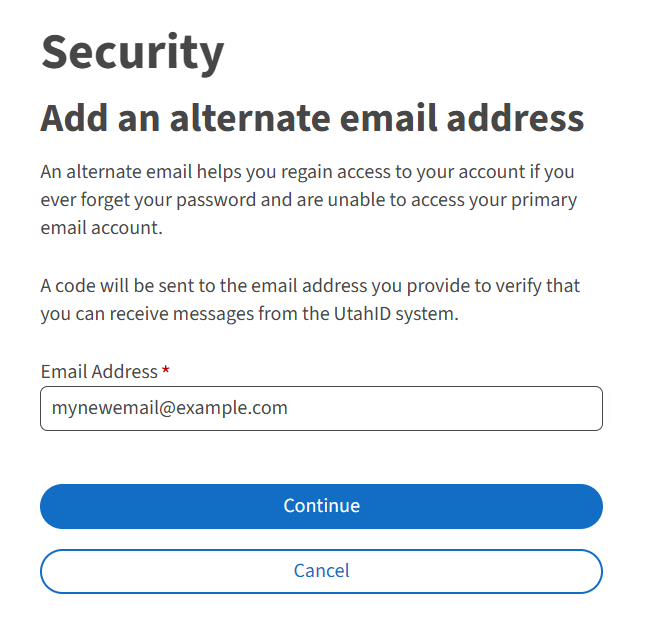
Add Alternate Email
Enter the alternate email address and click continue.Enter Security Code
Enter the security code that was sent to the newly added email address and click Continue.Success
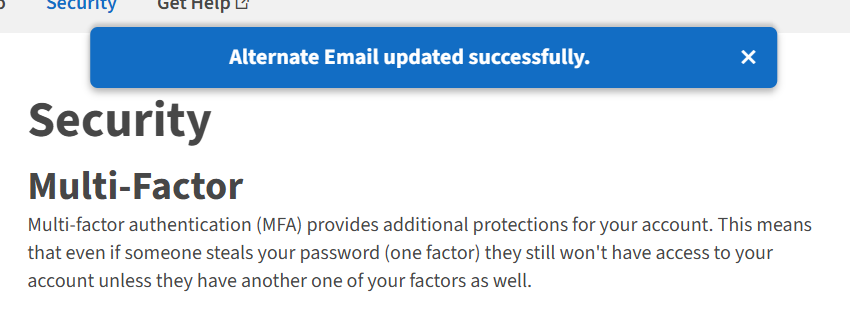
You have successfully added an alternate email address to your UtahID. You will be redirected to the main Security page and see the success message at the top of the screen.
Setting up an account to use SMS/Email Multi-factor (MFA)
By default, all accounts are now forced to use the SMS/Email MFA.

Sign in
Go to https://id.utah.gov and sign in to UtahID.
Select Security
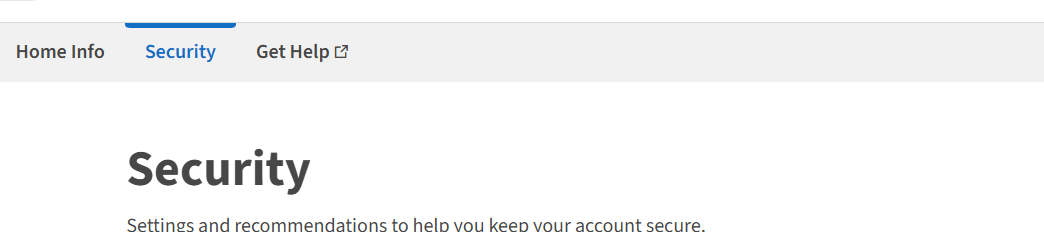
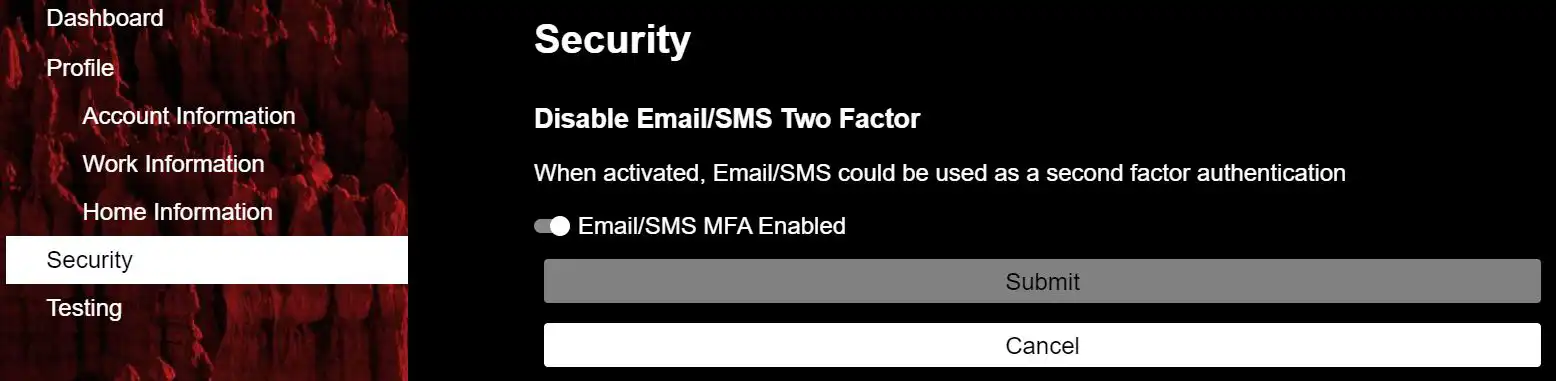
Select the Security link on the left, scroll down to the Multi-Factor section and click Disable Email/SMS Two Factor
Select the Security from the main menu, , scroll down to the Multi-Factor section and click on Update.
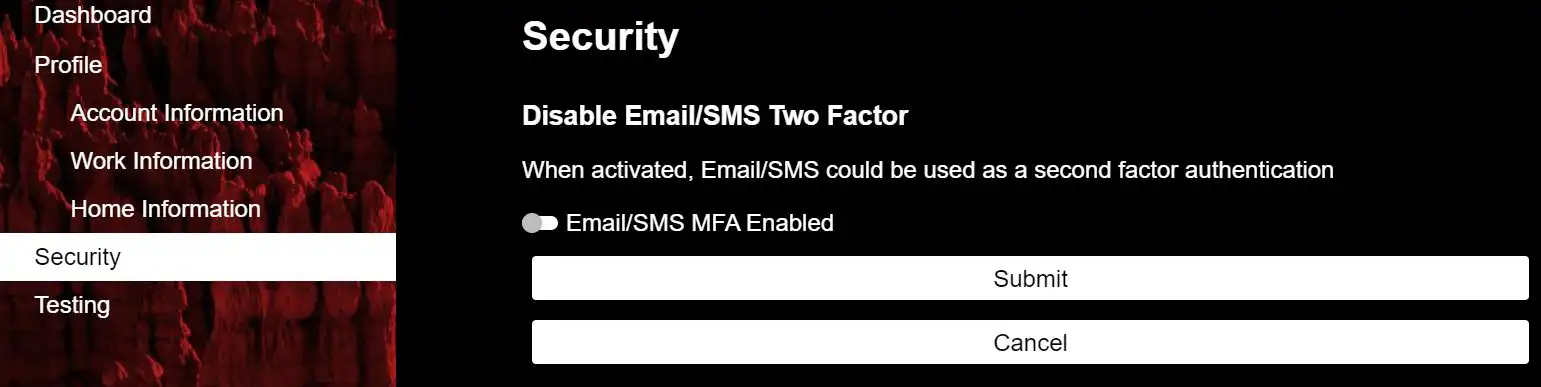
Activate the Toggle Button
Click Submit
You have successfully disabled Email/SMS Two Factor from UtahID.
Removing SMS / Email 2FA option

Sign in
Go to https://id.utah.gov and sign in to UtahID.Select Security - On the Left
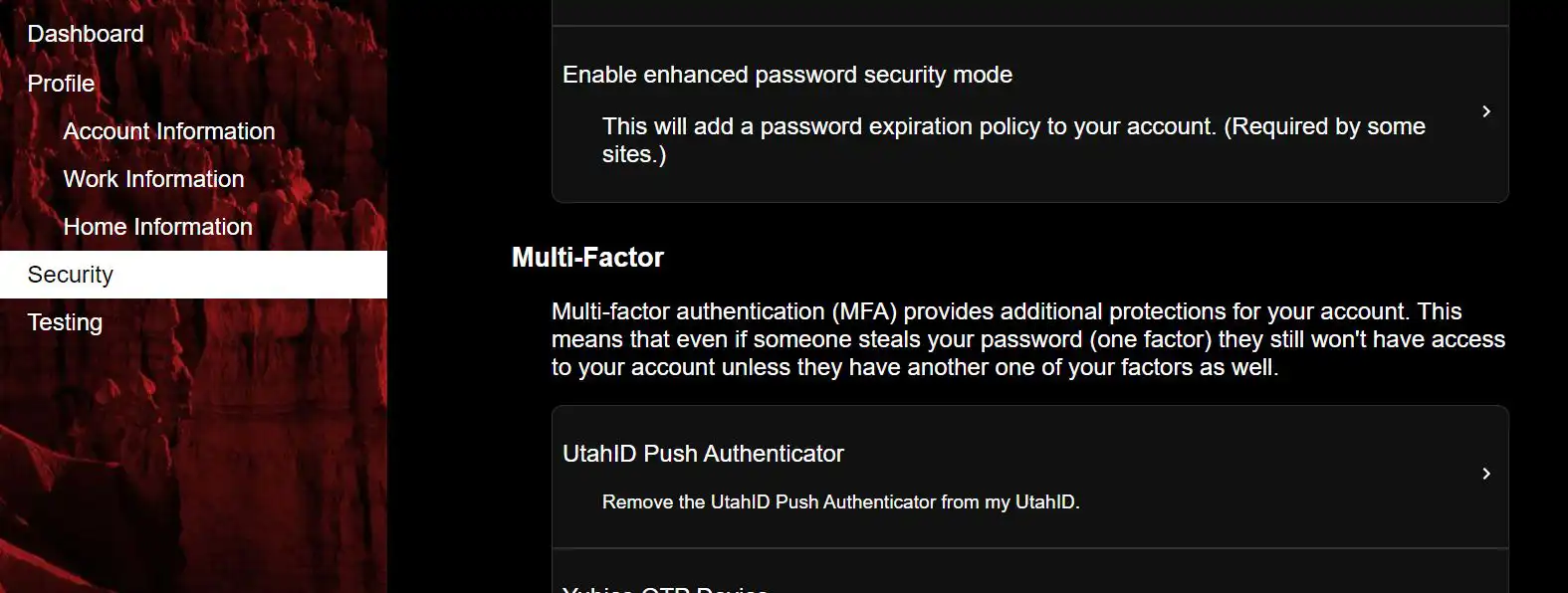
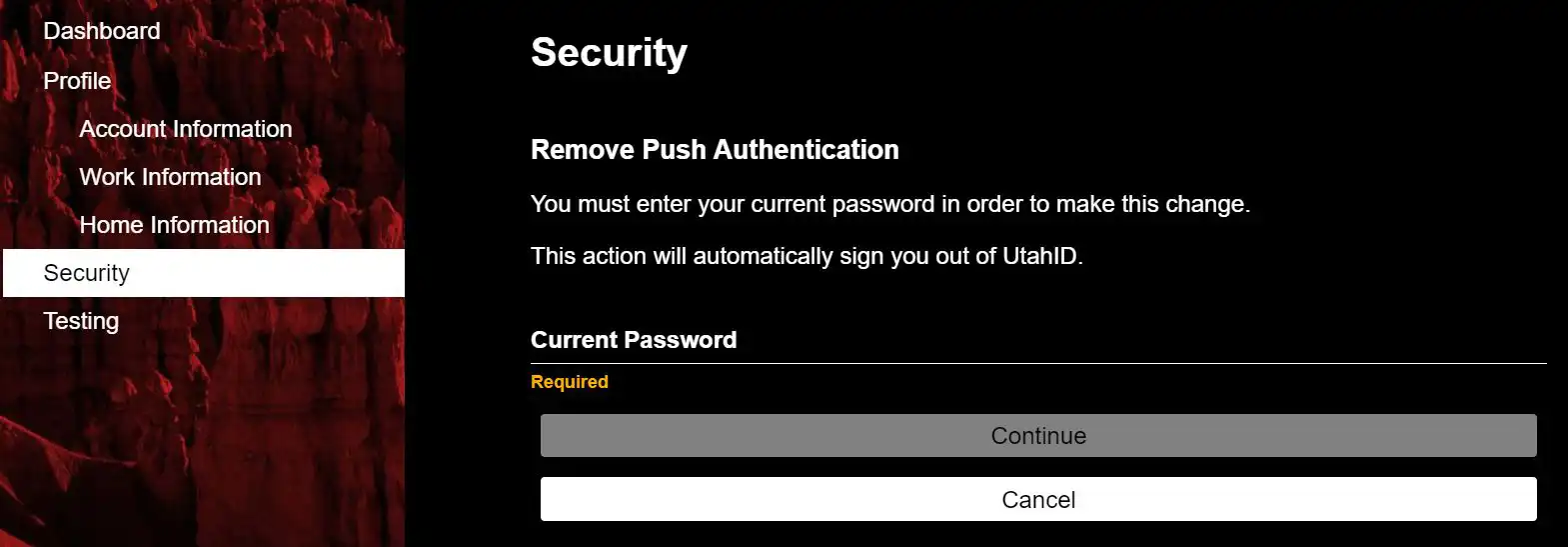
Select the Security link on the left, scroll down to the Multi-Factor section and click Remove the UtahID Push Authenticator from my UtahIDEnter your password and click Continue
Click Submit
The app is removed and you are logged out and taken back to the login page.
You have successfully removed the UtahID Authenticator Two Factor from UtahID
Removing UtahID Authenticator 2FA option
Sign in
Go to https://id.utah.gov and sign in to UtahID.Select Security - On the Left
Select the Security link on the left, scroll down to the Multi-Factor section and click Remove WebAuthn DeviceSelect Remove the Device from my UtahID
Enter Your Password and Click Remove
The device is removed and you are logged out and taken back to the login page.
You have successfully removed the Yubikey from UtahID
Removing YubiKey 2FA option
Note: if removing YubiKey you may also want to remove YubiKeyOTP, with the next section when completed with this on.
Sign in
Go to https://id.utah.gov and sign in to UtahID.Select Security - On the Left
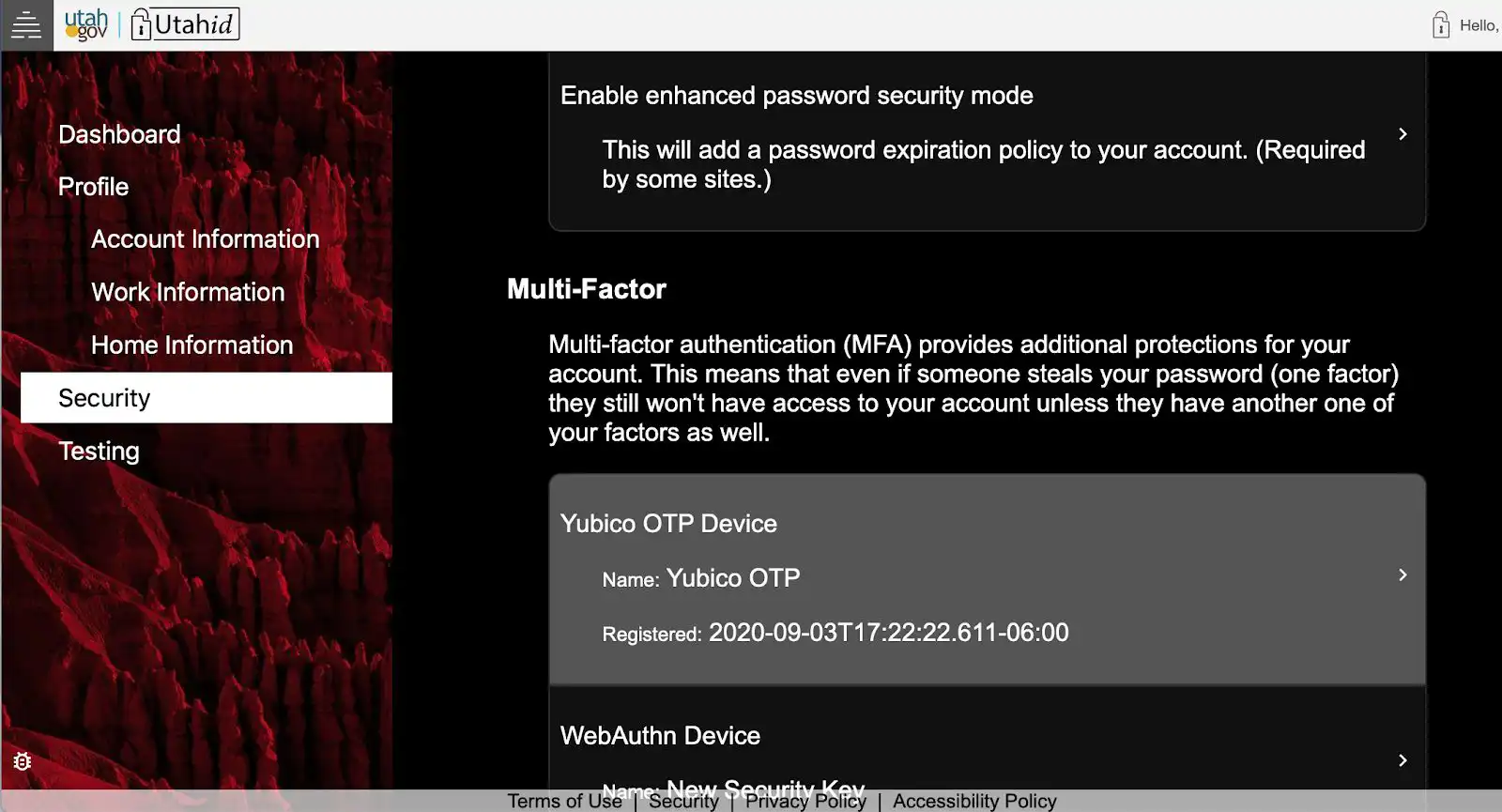
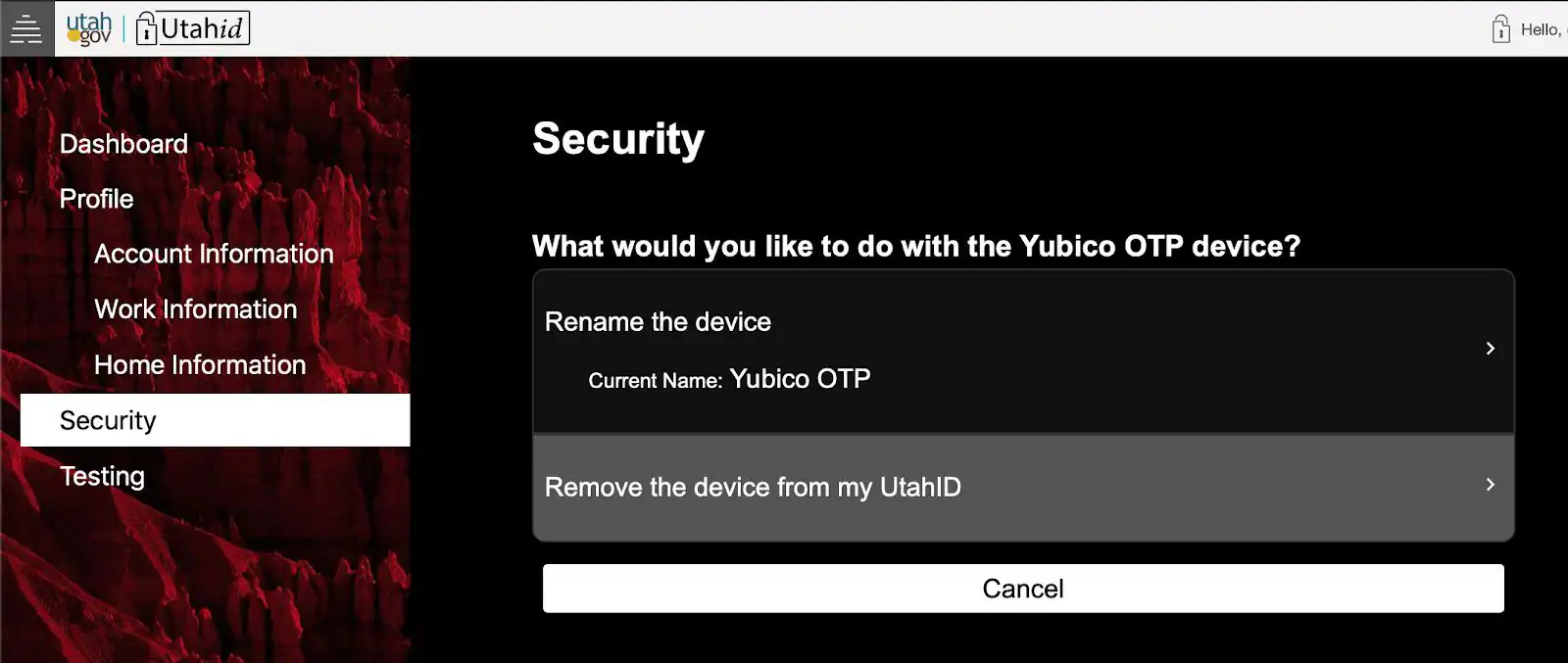
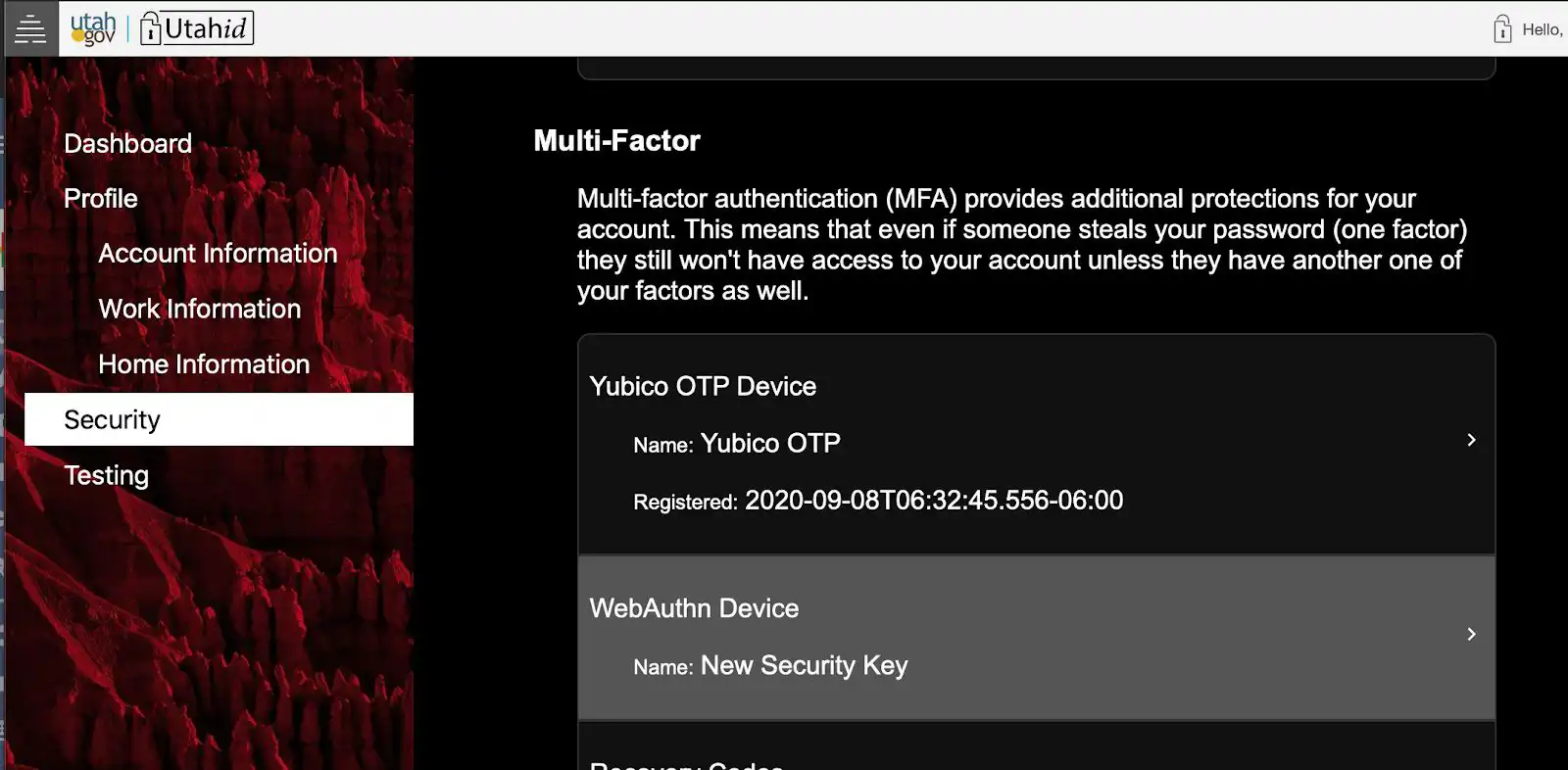
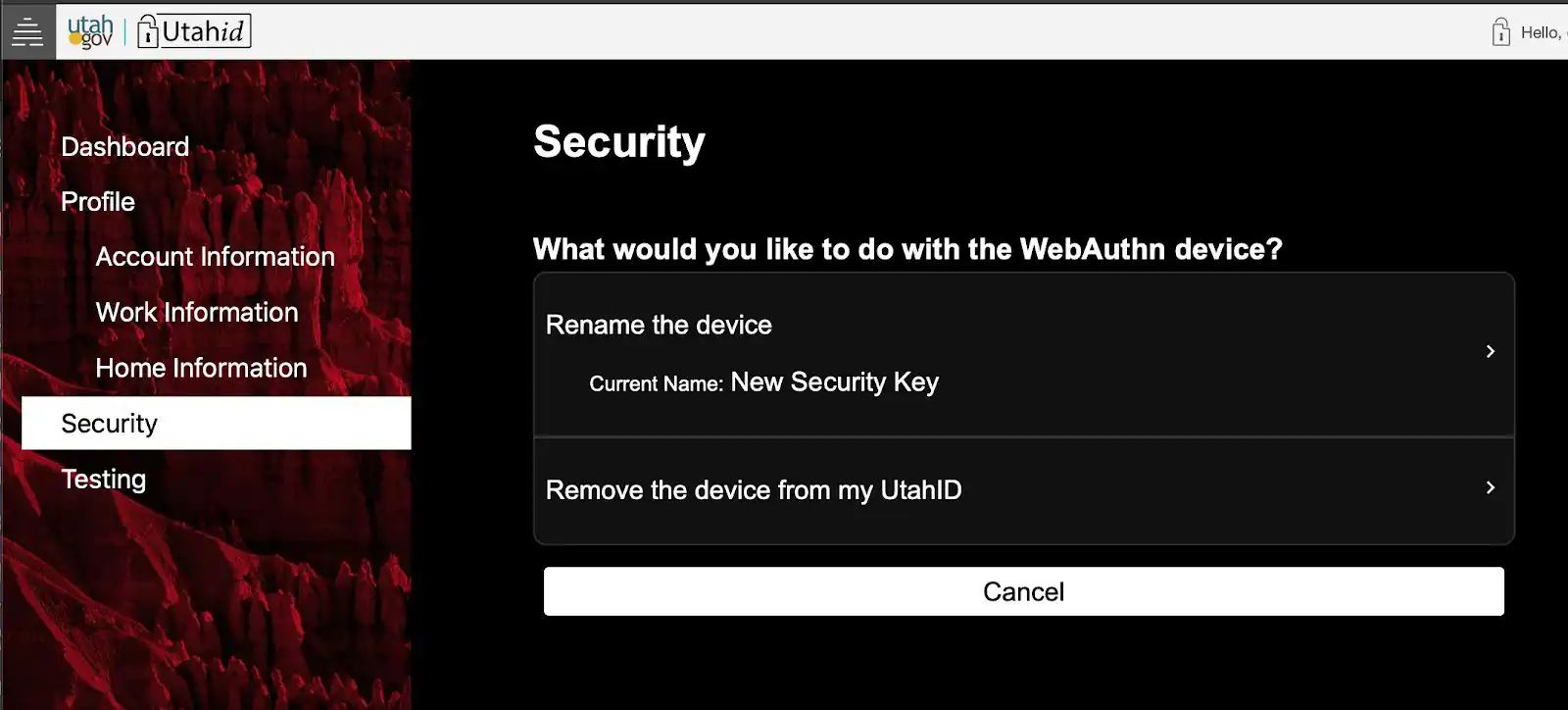
Select the Security link on the left, scroll down to the Multi-Factor section and click Yubico OTP DeviceSelect Remove the Device from my UtahID
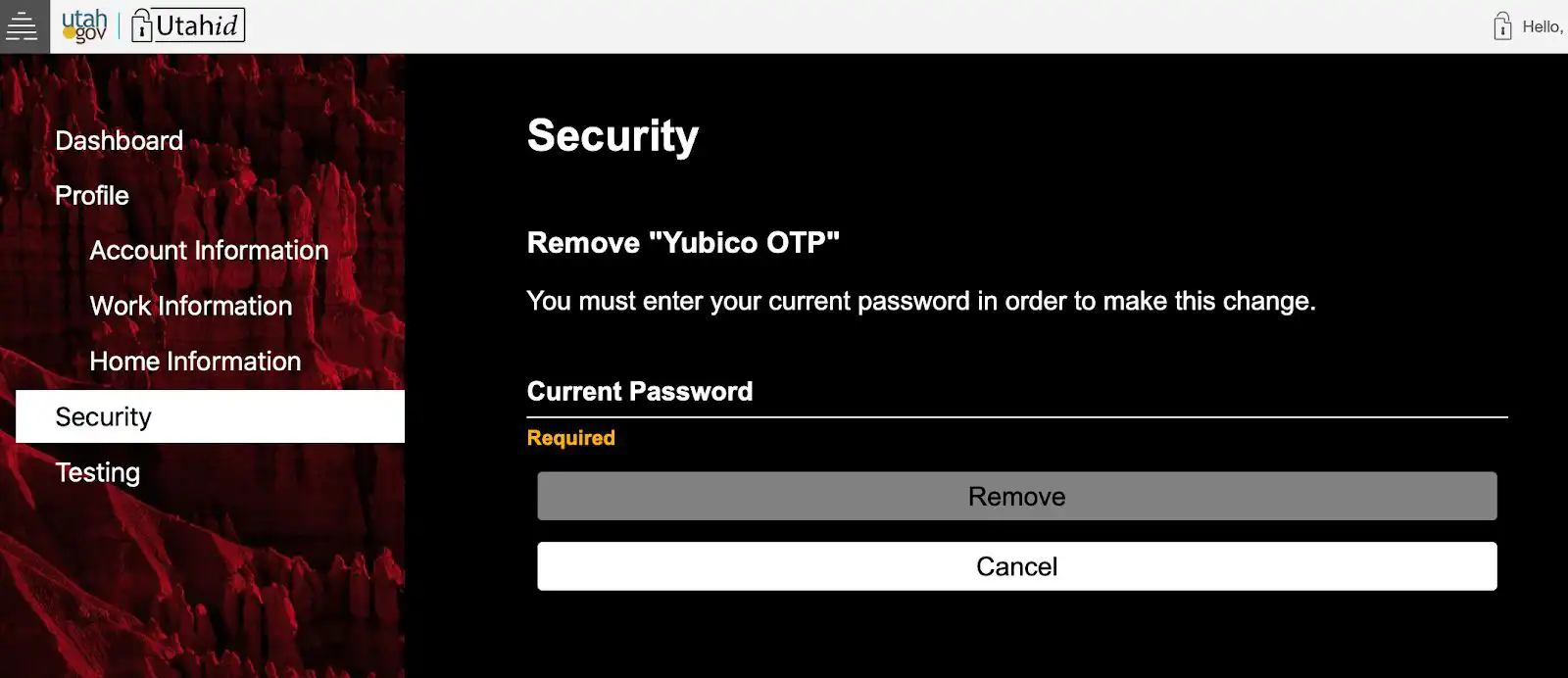
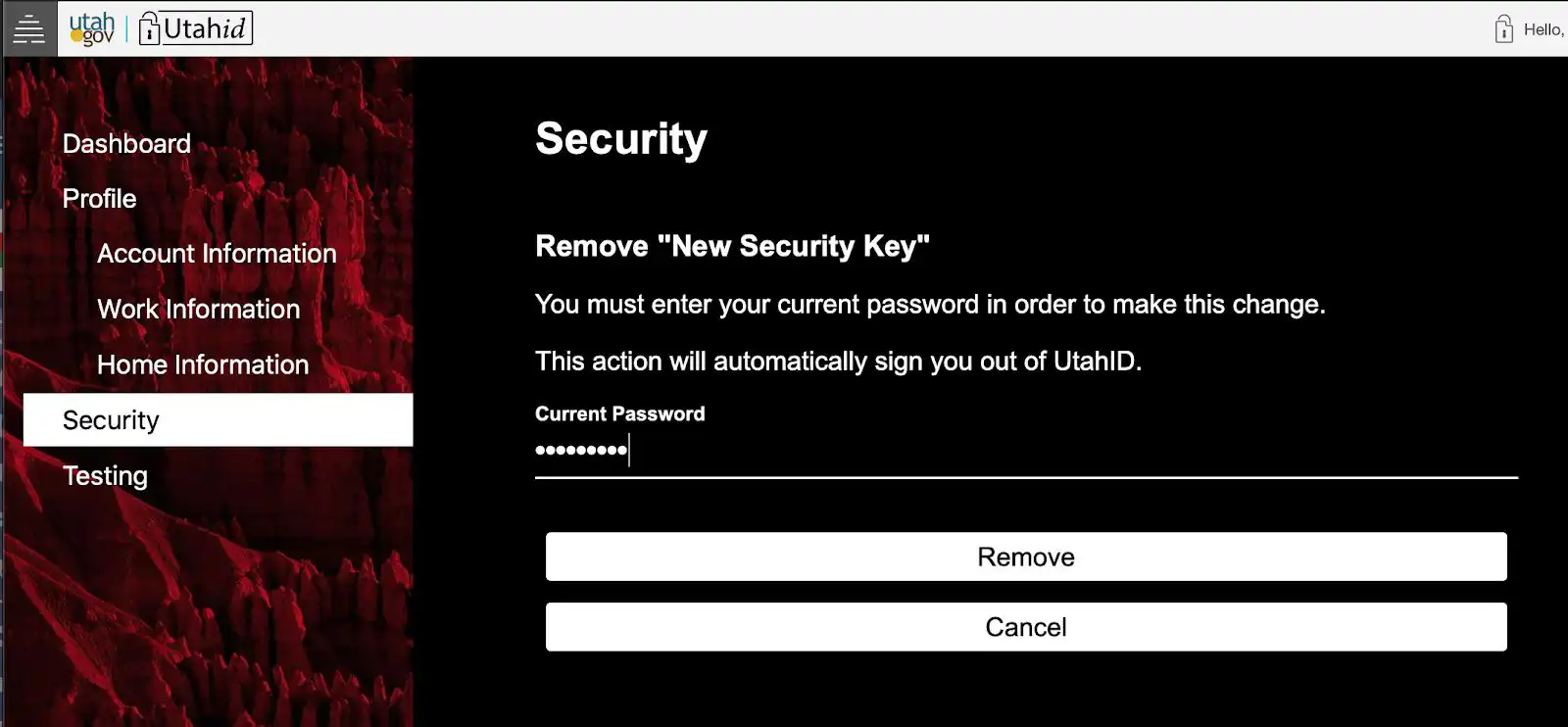
Enter Your Password and Click Remove
The Yubico OTP is removed and you are back to your account maintenance page.
You have successfully removed the Yubikey OTP from UtahID